

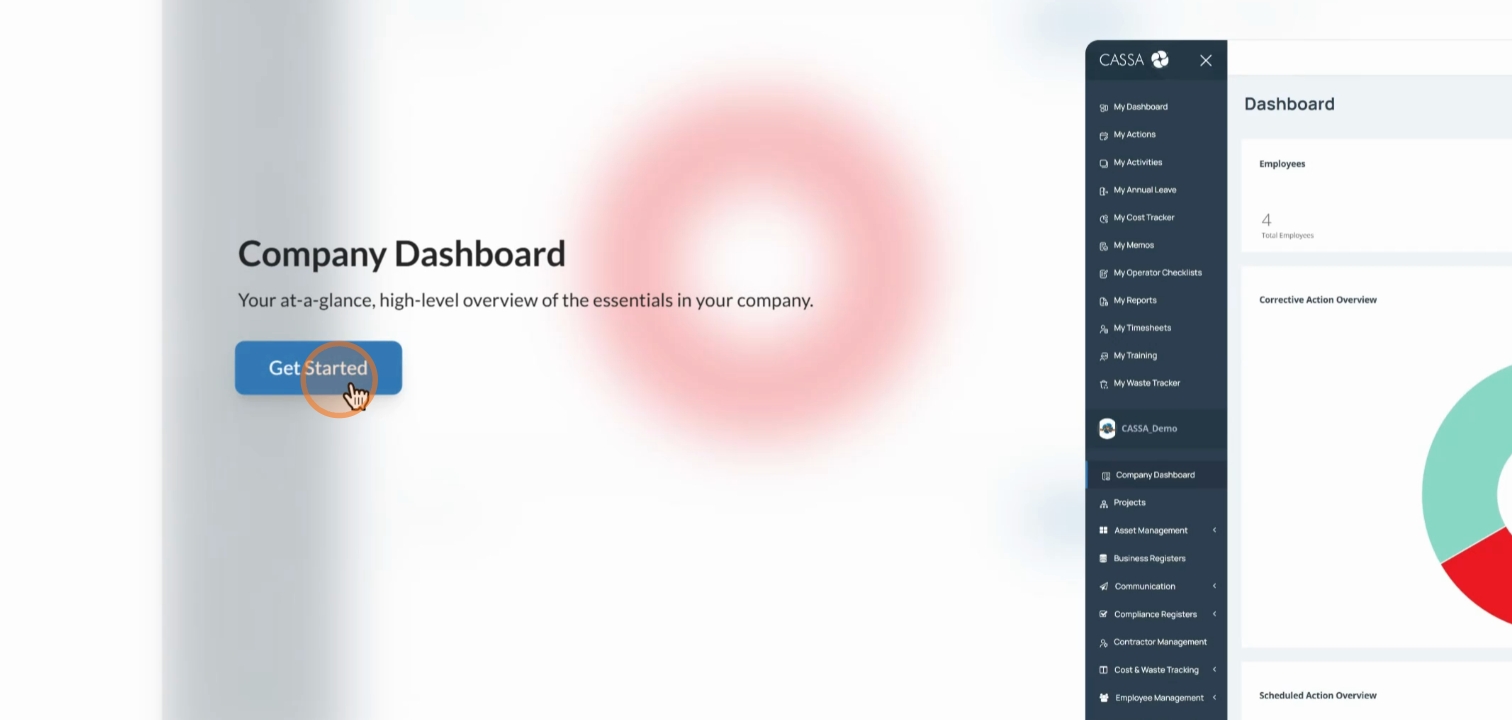
In this tutorial, we will explore the Company Dashboard. You will gain a high-level overview of essential metrics in your company.
Step-by-step
1: Click Get Started
To get started, click on the Get Started button. Then, in the main navigation, click on Company Dashboard.
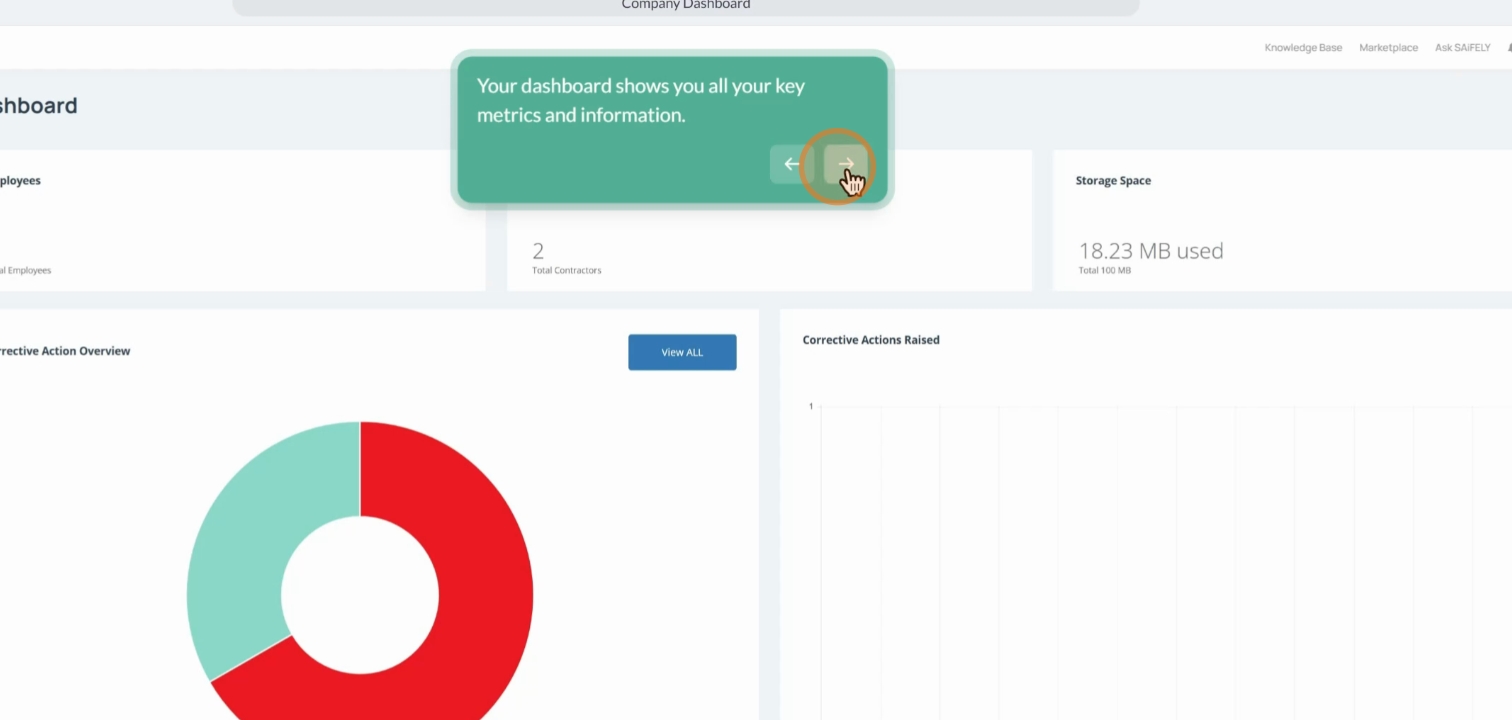
Now the screen will refresh and you will see your dashboard, displaying key metrics such as employees, contractors, and storage space used.
Step 2: View Corrective Actions Overview
Next, look at the Corrective Actions Overview. This section allows you to see what's good and what needs attention. To take a closer look, click on the View all button.
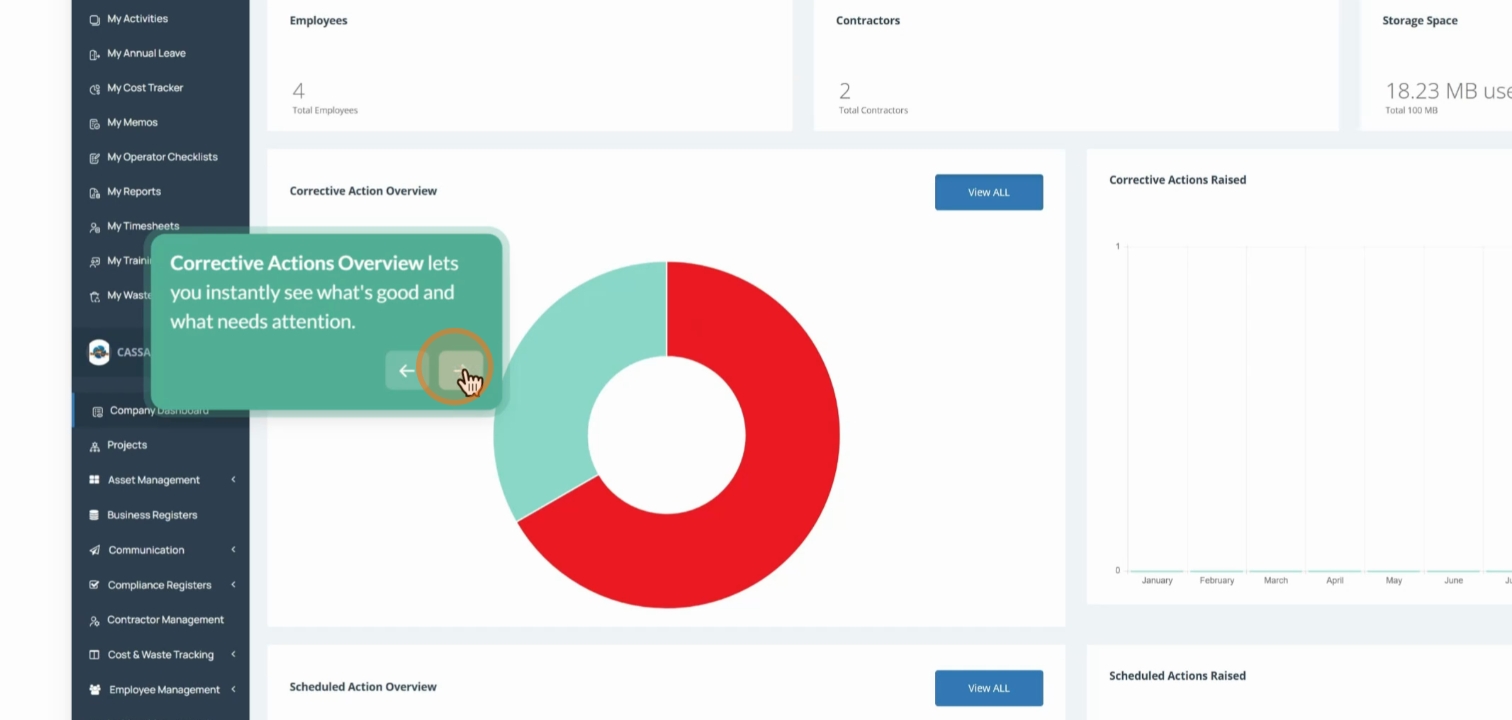
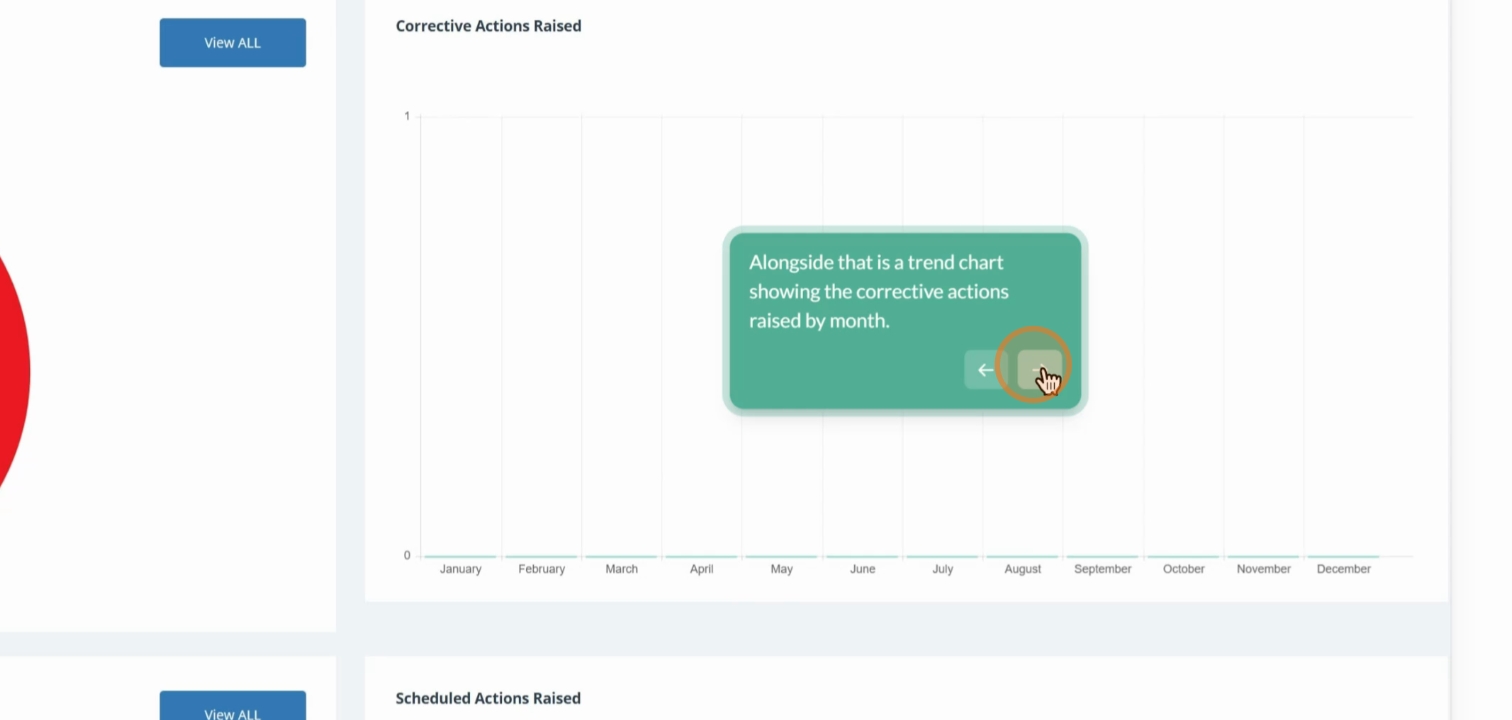
Alongside the overview is a trend chart showing the corrective actions raised by month.
Step 3: Check Scheduled Actions Overview
Scrolling down, you will find the Scheduled Actions Overview. You can use the View all button for a closer look at individual items.
Step 4: Explore Reports Register Overview
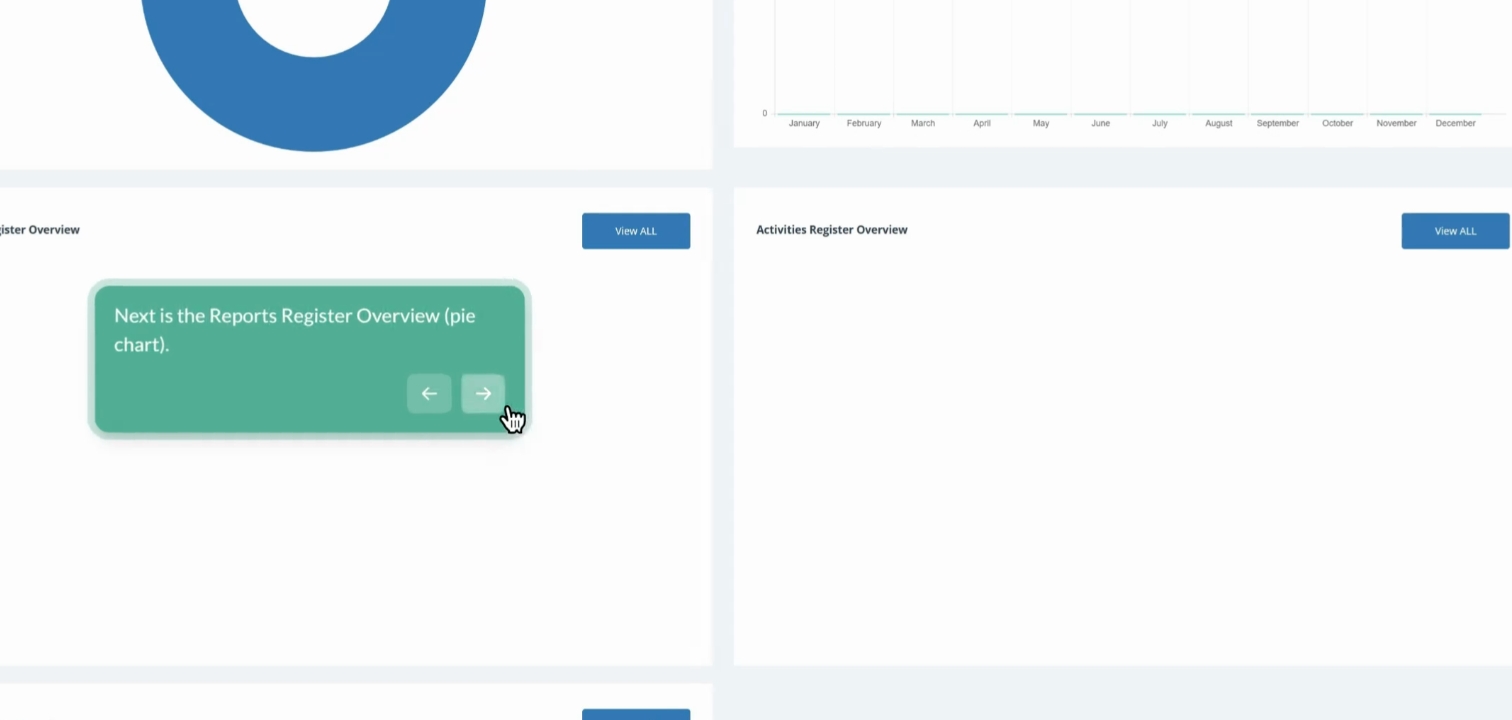
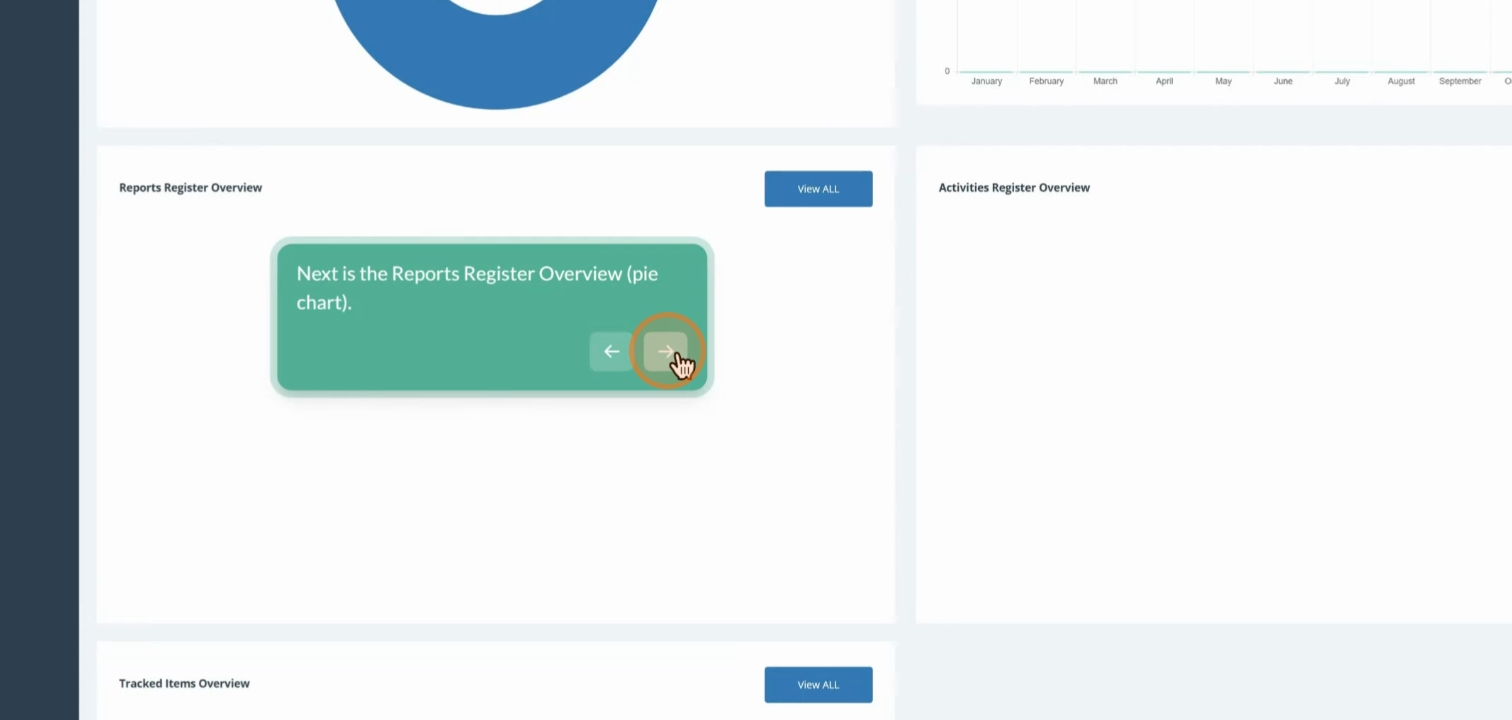
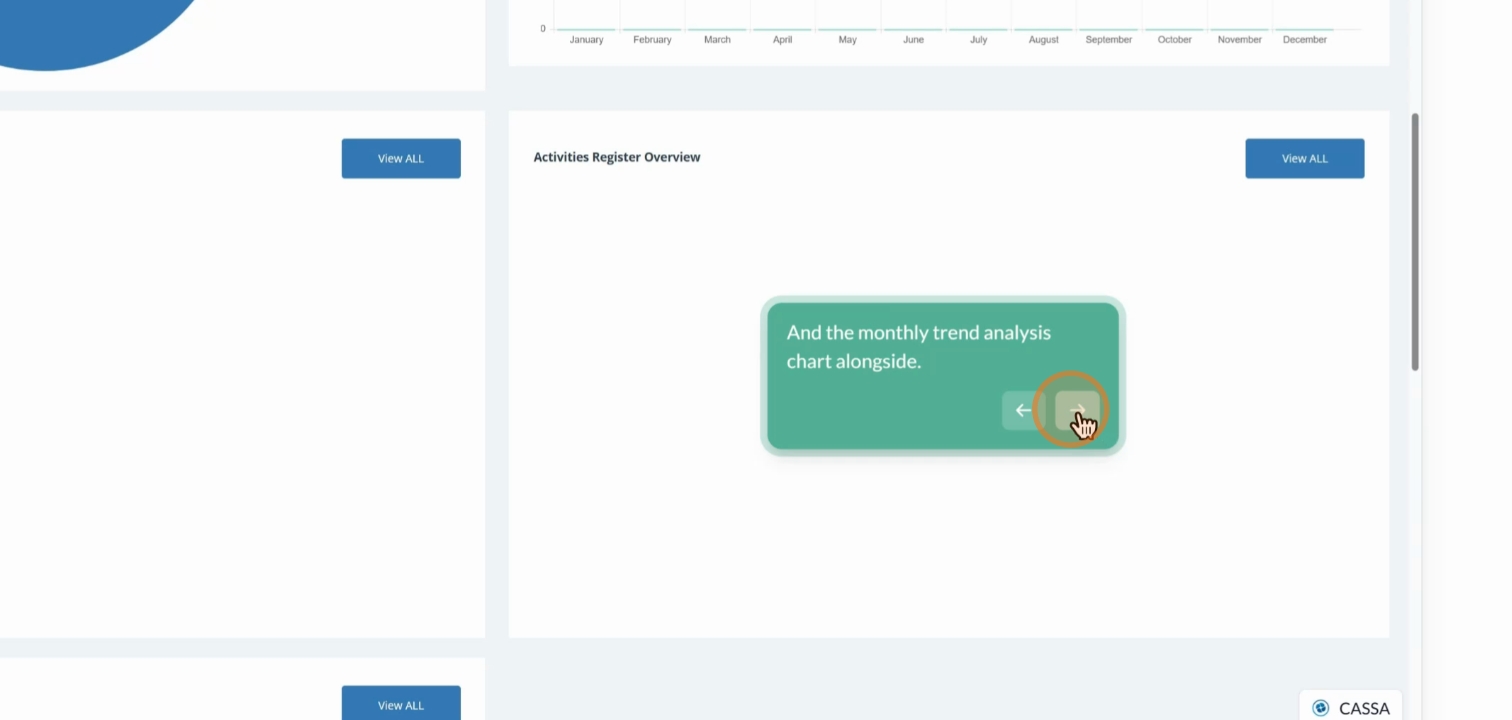
Next is the Reports Register Overview, which is displayed as a pie chart along with a monthly trend analysis chart.
Step 5: Review Tracked Items Overview
Alongside that, scrolling down, you will find the Tracked Items Overview, which lists all items. You can also use the View all button here.
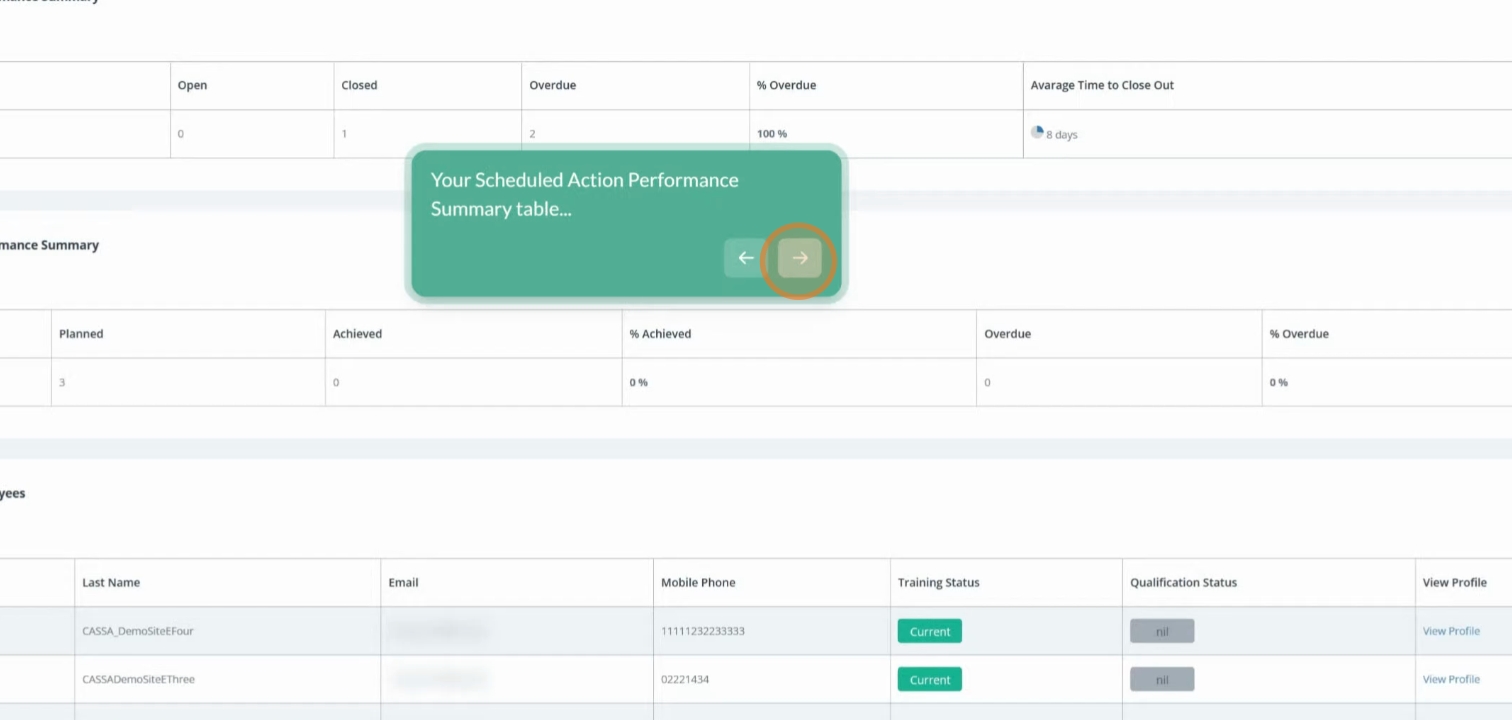
Continuing further, you will see the Corrective Action Performance Summary table providing your action statistics.
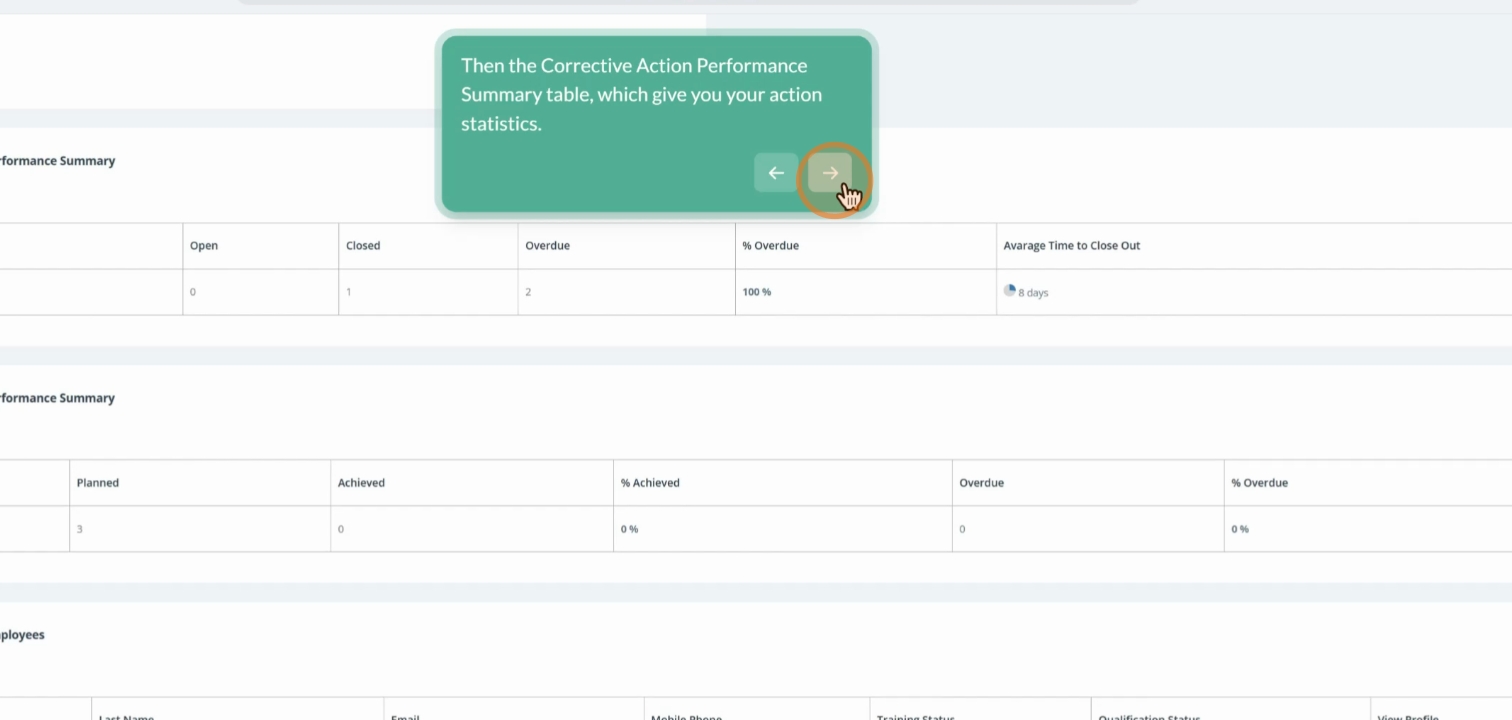
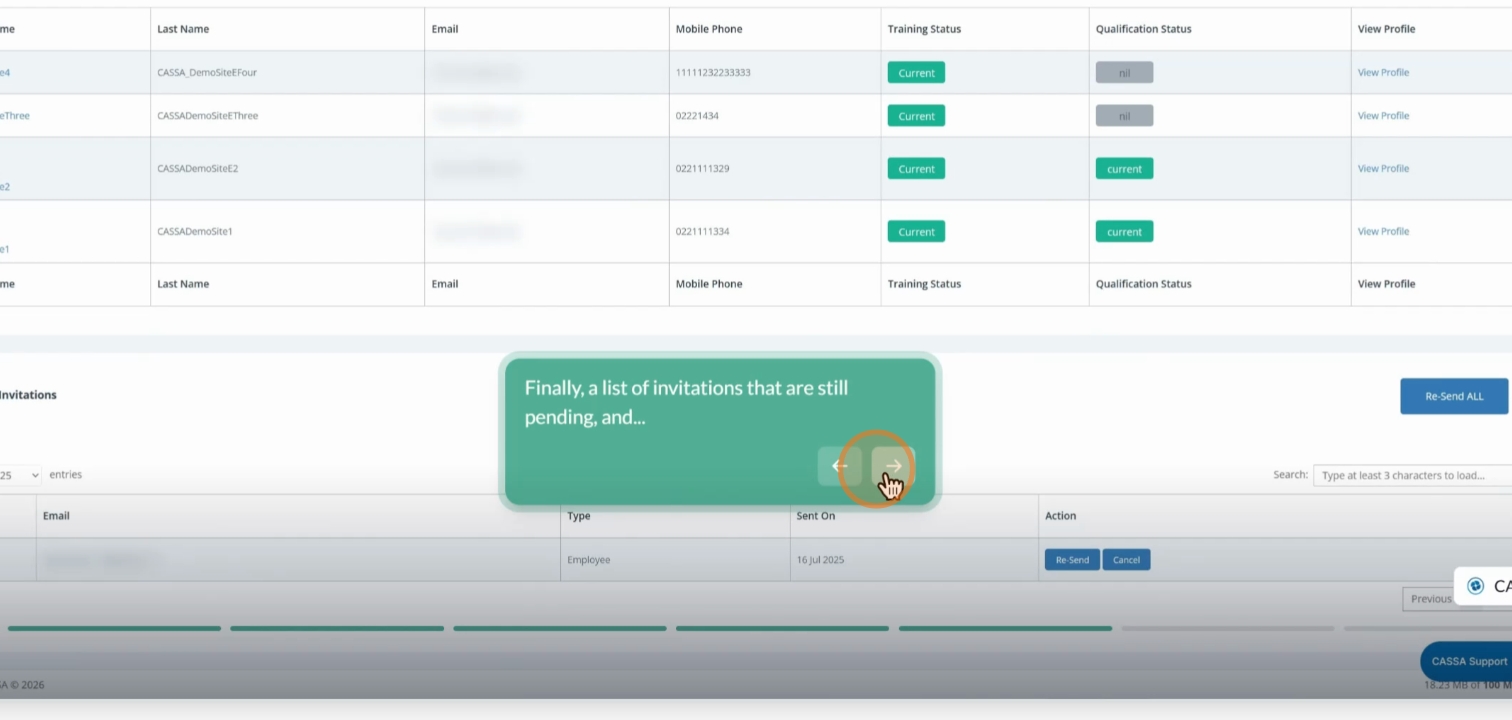
Below that, there is the Scheduled Action Performance Summary, and towards the end, you will find the latest registered employees with essential details, including current employee training and qualification statuses. On the right-hand side, there is a link to their individual profiles.
Finally, you will see a list of invitations that are still pending. On the right, the Resend all button allows you to resend pending invitations to all employees who haven't yet accepted.