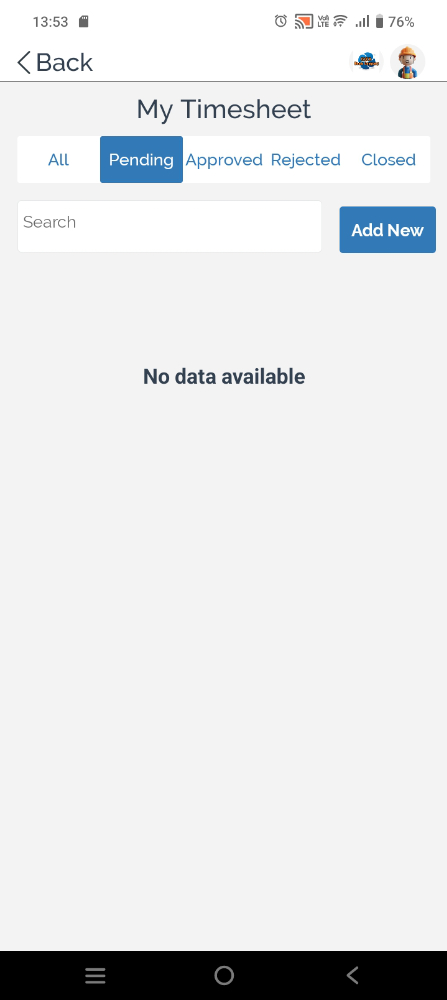


One of the benefits of CASSA is that you can operate your business from anywhere with just your mobile device, the CASSA app, and an Internet connection.
Add Timesheet
To add a new timesheet on the app:
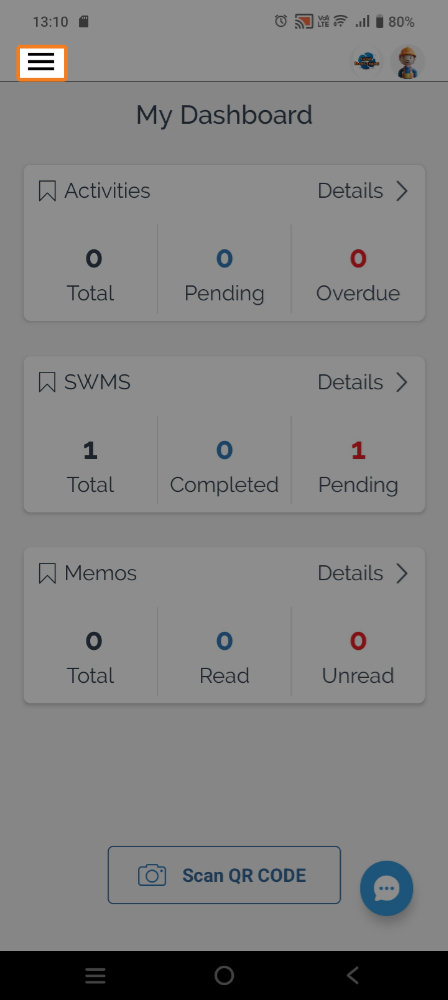
Click on the hamburger menu to display the navigation bar:
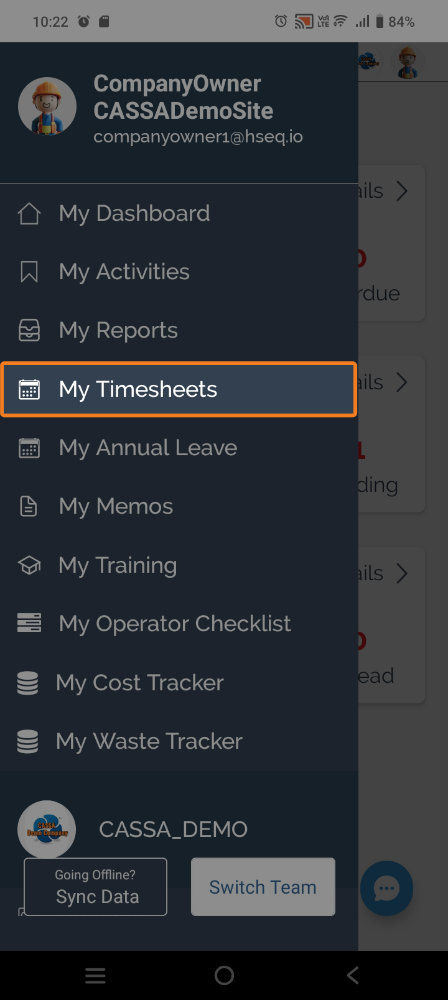
Click on My Timesheets and you’ll see the All tab on the My Timesheet screen.
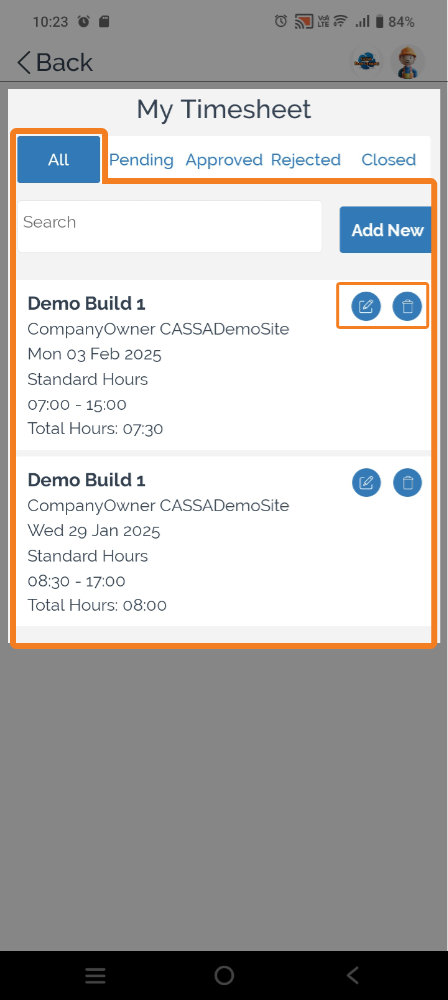
Click on the Add New button and you’ll see the Create Timesheet screen (scroll down on your device is necessary).
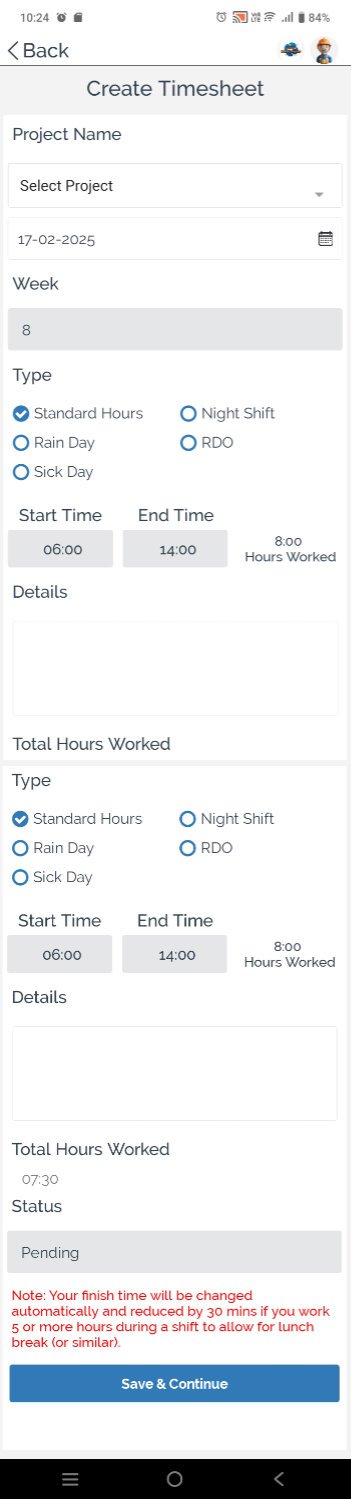
Add your timesheet information in the same manner as on desktop and when done, click on the Save & Continue button.
The timesheet will be submitted and saved, and you’ll be notified accordingly:
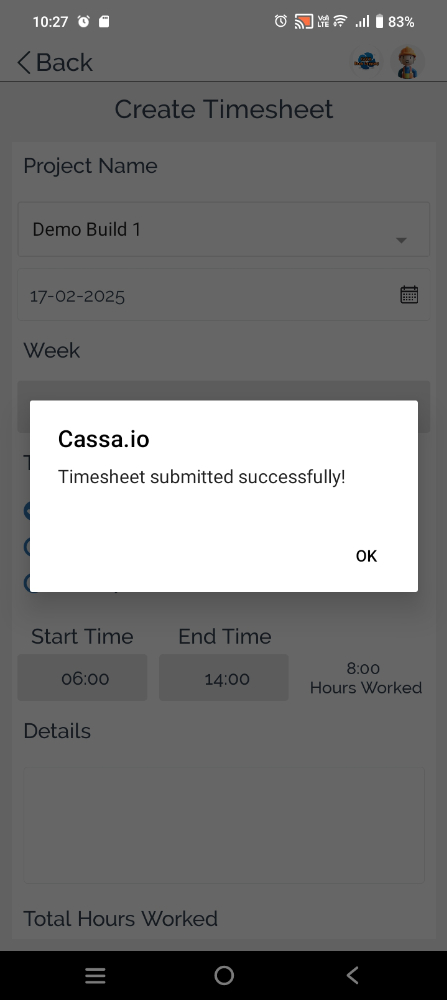
You’ll be taken to the All tab in My Timesheets where you’ll see your new timesheet:

Edit Timesheet
To edit one of your timesheets:
Identify the timesheet to be edited and click on the Edit button to enter Edit mode:
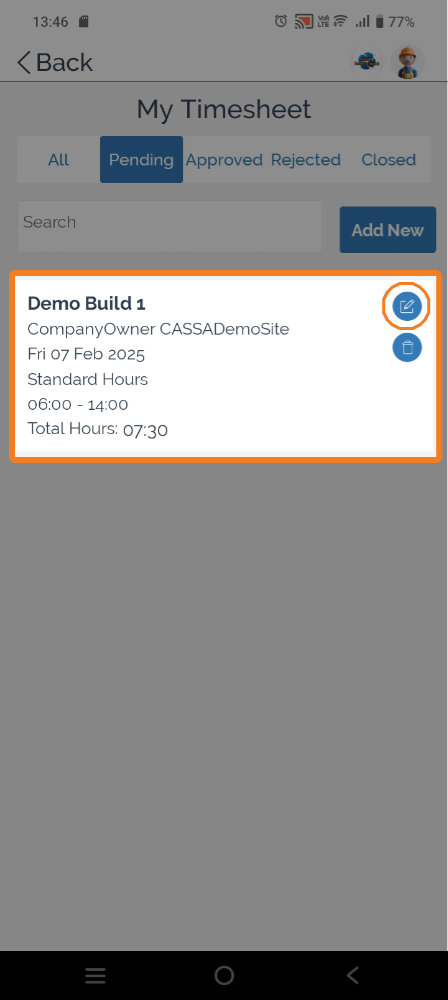
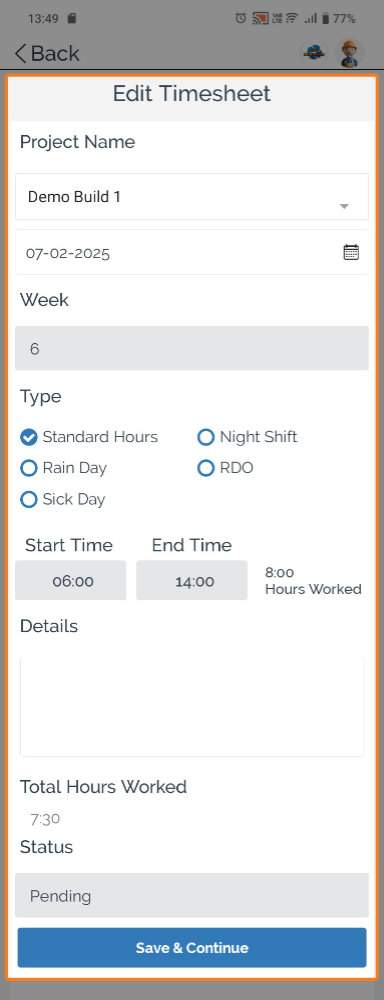
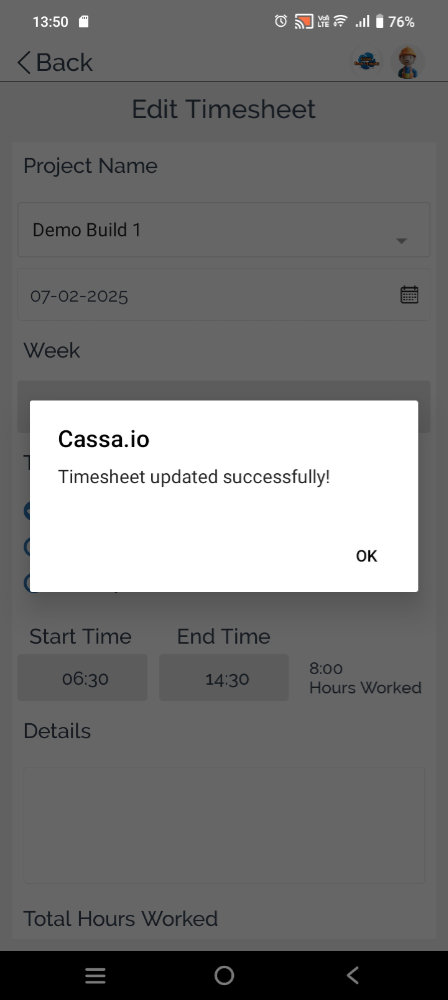
Make the changes to your timesheet and then click on the Save & Continue button. You’ll then see the Timesheet updated successfully! notification:
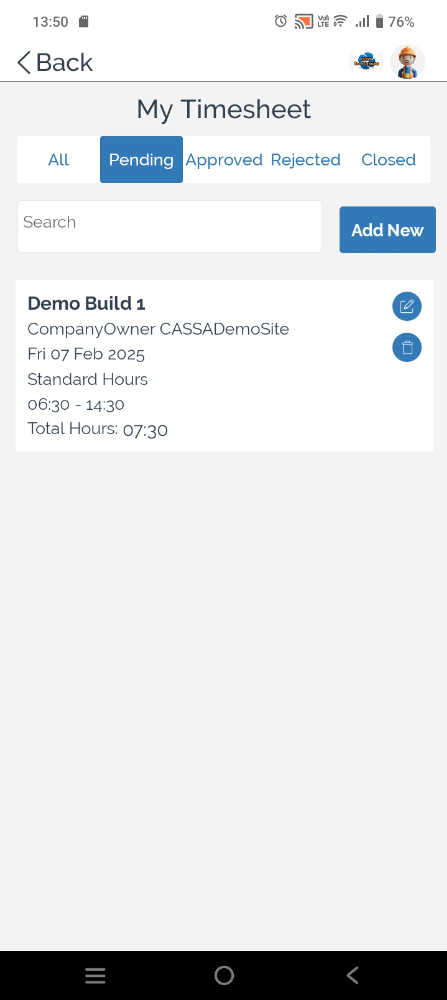
The record will update and you’ll be taken back to the My Timesheet Pending tab where you can see your changes:
Delete Timesheet
To delete one of your timesheets:
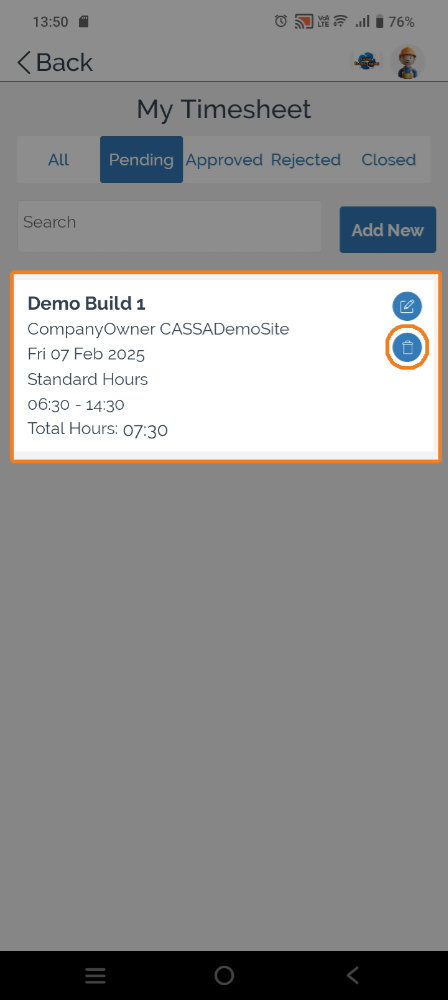
Identify the timesheet to be deleted and click on the Delete button:
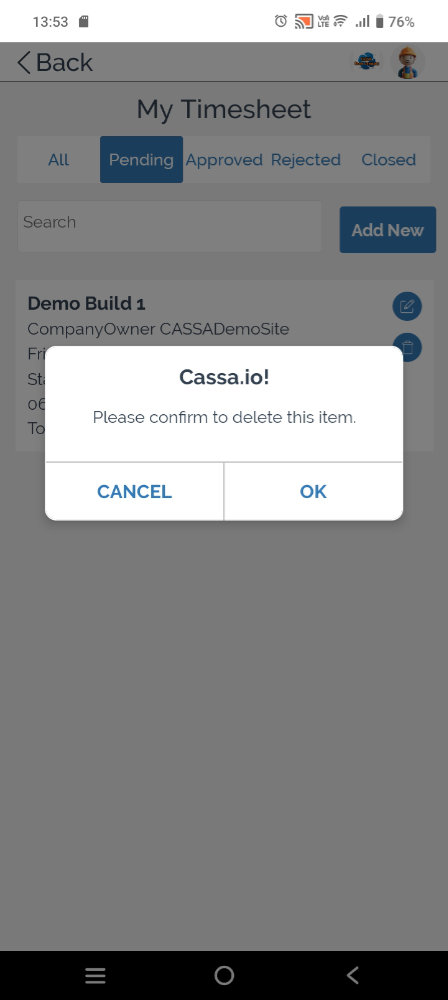
The confirmation popup will display:
Click on OK and the Timesheet deleted successfully confirmation will display:
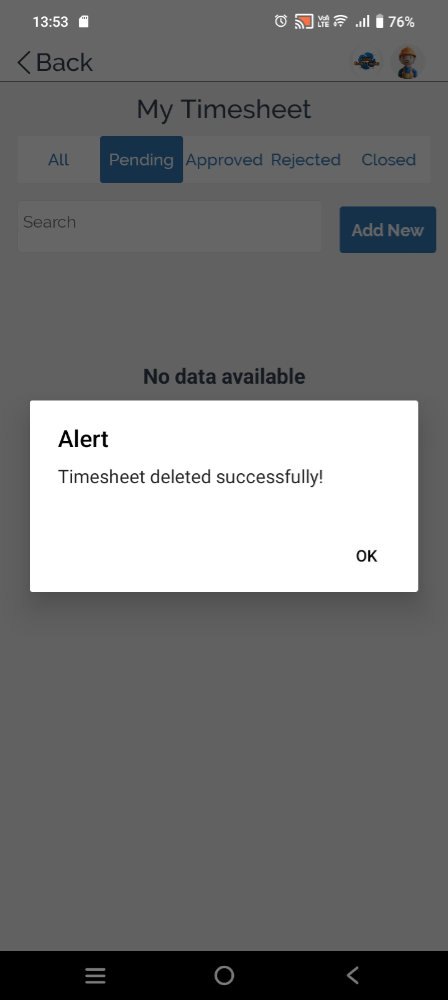
You’ll then be returned to the My Timesheet dash: