

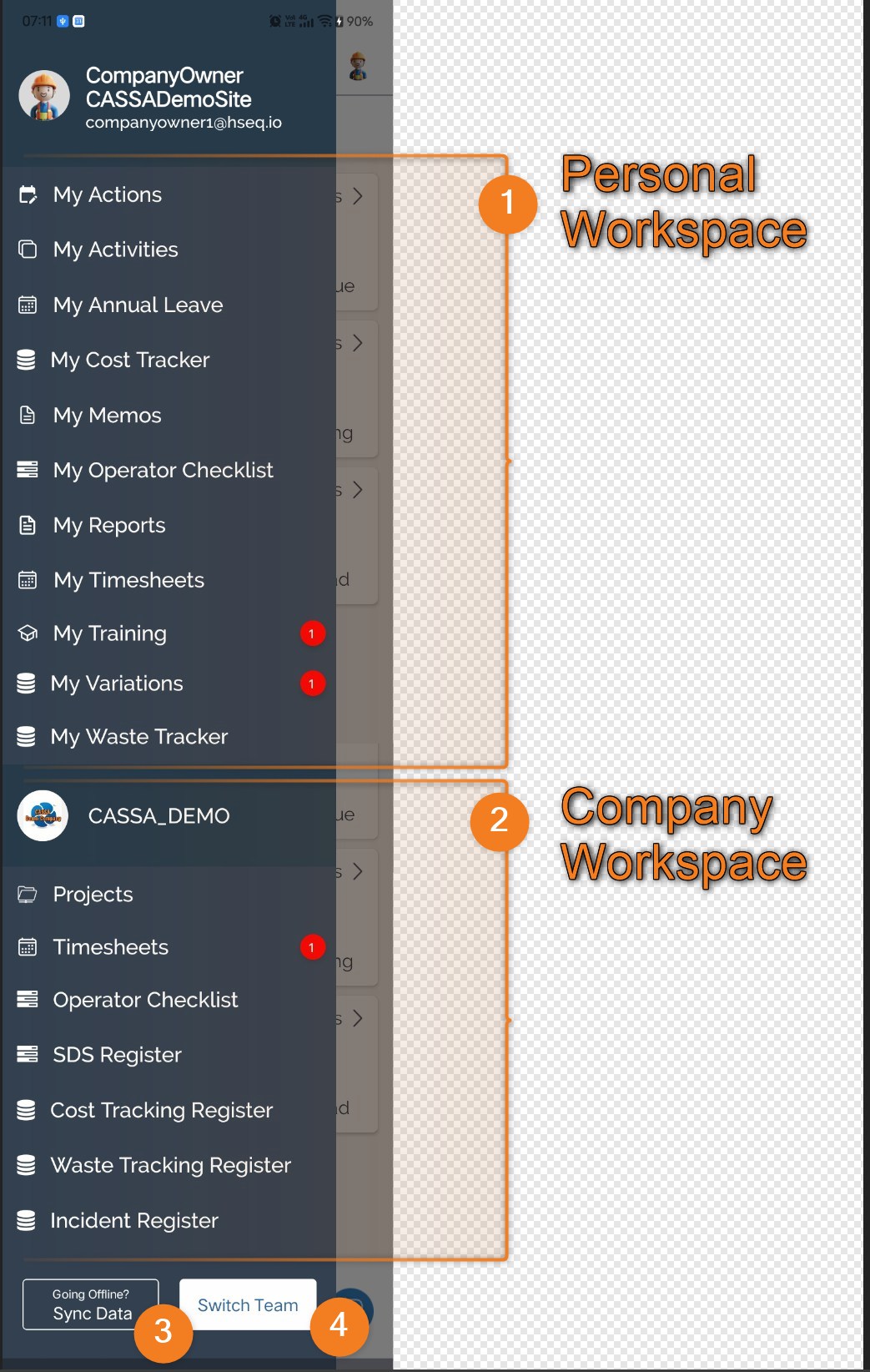
The Navigation Menu is the main navigation hub of the CASSA mobile app. It is organised into two distinct workspaces. The Personal Workspace contains features related to your own work and responsibilities, while the Company Workspace provides access to company-wide projects and registers. Shared functions, such as offline synchronisation and team switching, are available at the bottom of the menu.
Personal Workspace
The Personal Workspace (1) contains features that relate specifically to you as the logged-in user. These modules display your assigned work, personal records, and items requiring your attention.
To access your personal work:
Select one of the available menu items, including:
My Actions
My Activities
My Annual Leave
My Cost Tracker
My Memos
My Operator Checklist
My Reports
My Timesheets
My Training
My Variations
My Waste Tracker
Notification badges indicate items that require your attention, such as overdue training or pending variations.
Company Workspace
The Company Workspace (2) begins below the company logo and company name. This section provides access to company-wide information and operational modules available to your role.
To access company features:
Select the required module, such as:
Projects
Timesheets
Operator Checklist
SDS Register
Cost Tracking Register
Waste Tracking Register
Incident Register
The modules available depend on your permissions and your organisation's configuration.
Note: Company modules typically allow you to work with records shared across the organisation, rather than your own personal records.
Shared Functions
The controls at the bottom of the navigation menu are available regardless of which workspace you are using.
To prepare the app for offline use:
Select Sync Data (3) to download the latest information to your device. This allows you to continue working when internet access is unavailable.
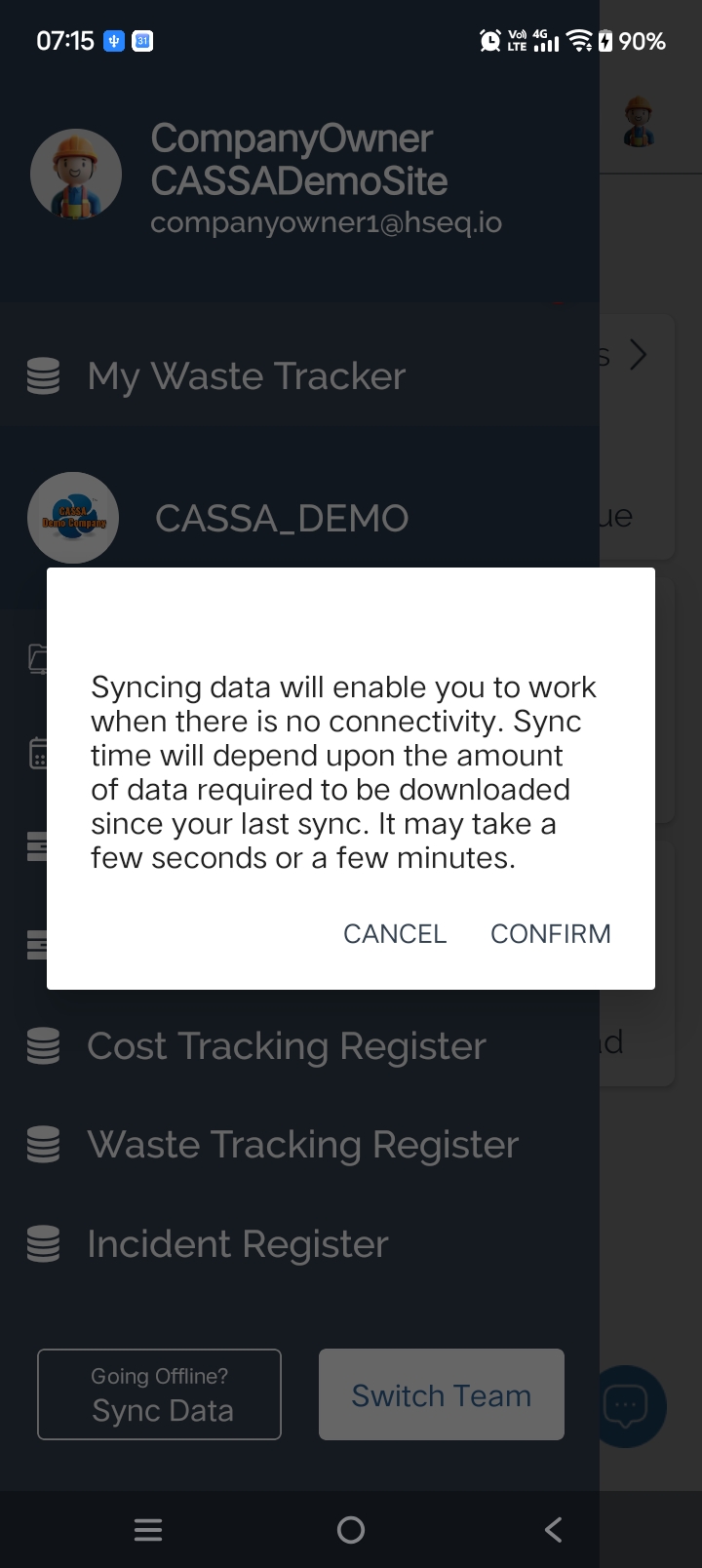
Note: Synchronise your data before travelling to remote sites or areas with limited mobile coverage.
To switch between companies or teams:
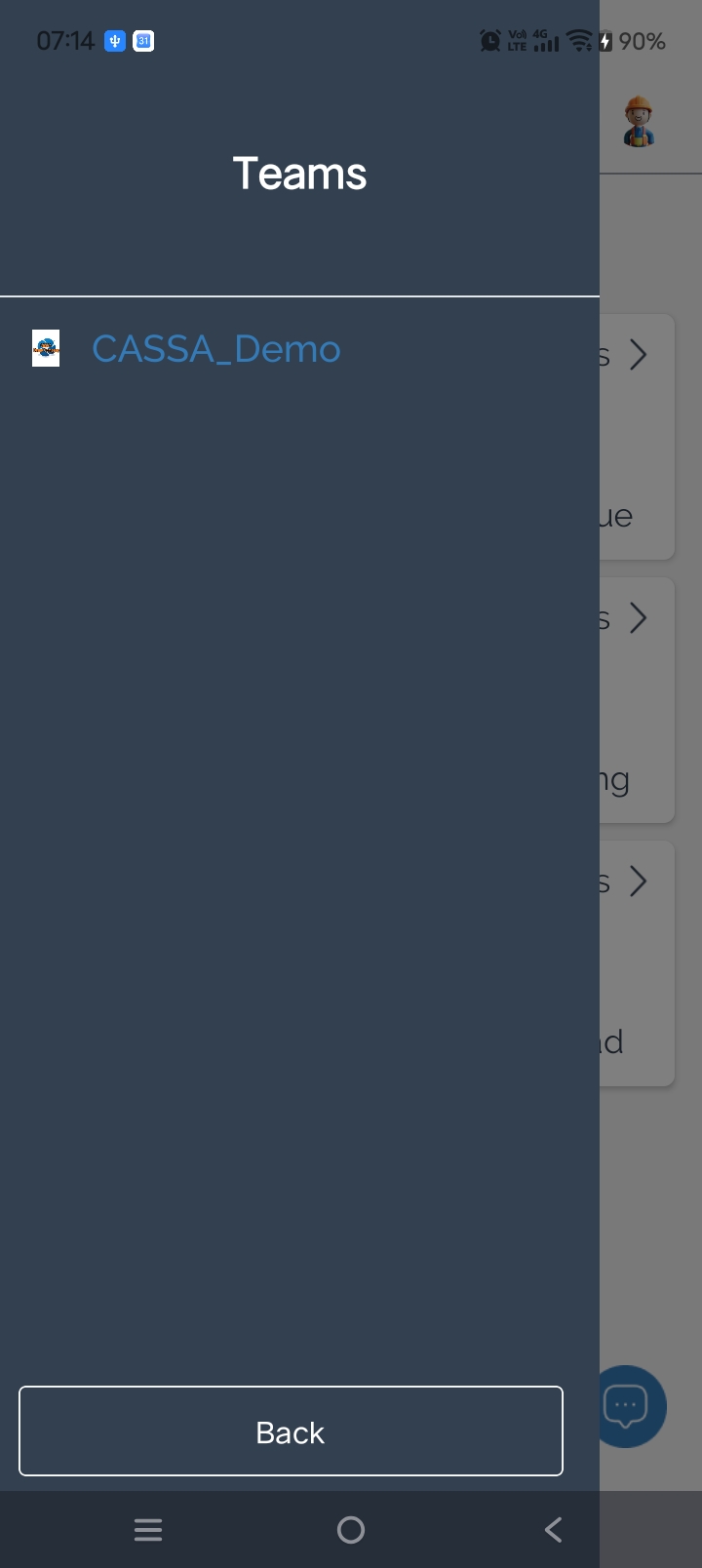
Select Switch Team (4). This is useful if you have access to multiple companies or organisations within CASSA.
You can also:
View your profile name and email address at the top of the navigation menu.
Move seamlessly between your personal workspace and company workspace without leaving the menu.
Use notification badges to quickly identify modules that require your attention.