


Within CASSA, all projects have their own dashboard:
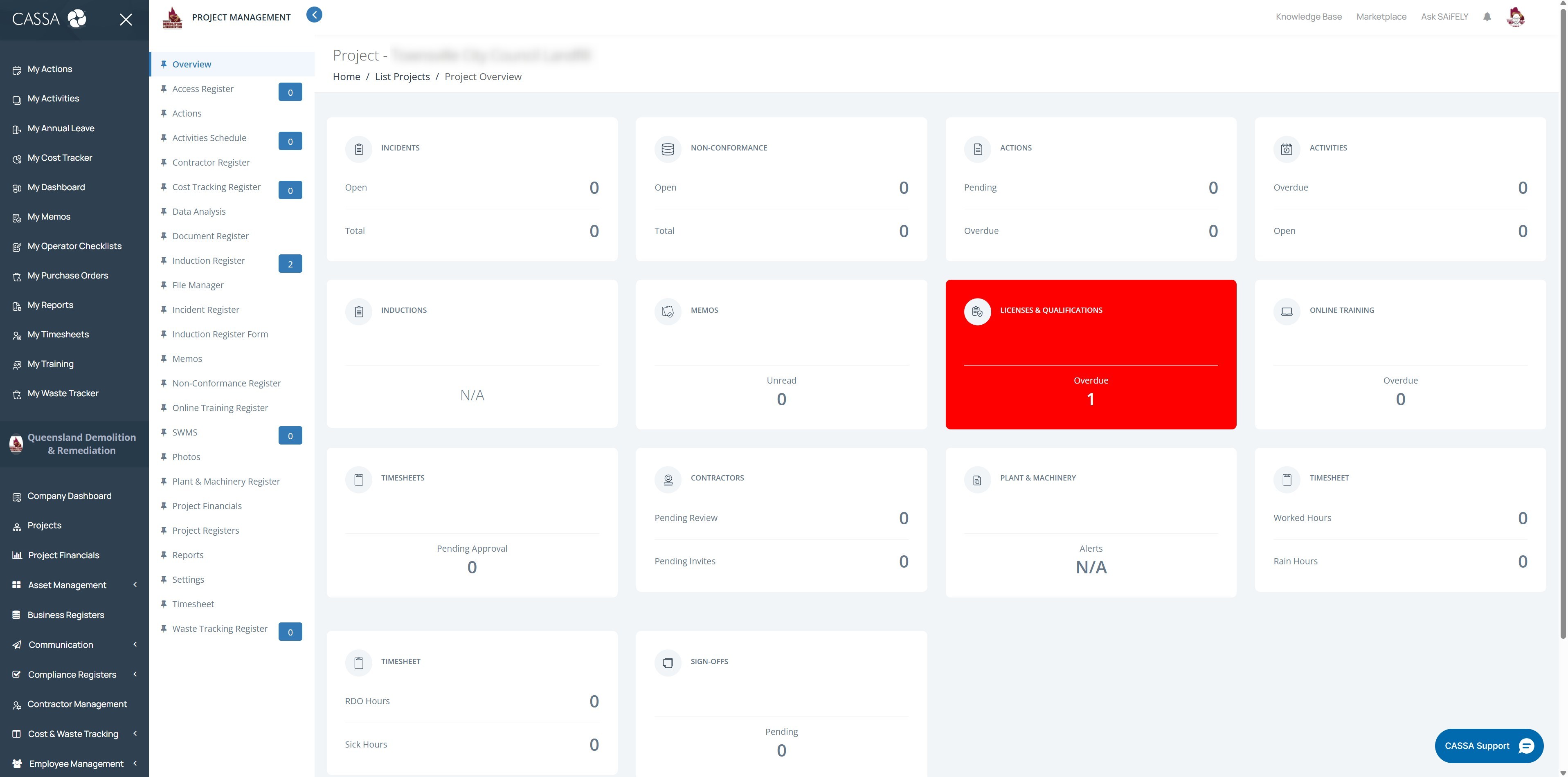
This can be access in multiple ways:
Access from the Project Dashboard
From the Projects dashboard, click on the View Project button next to the project:
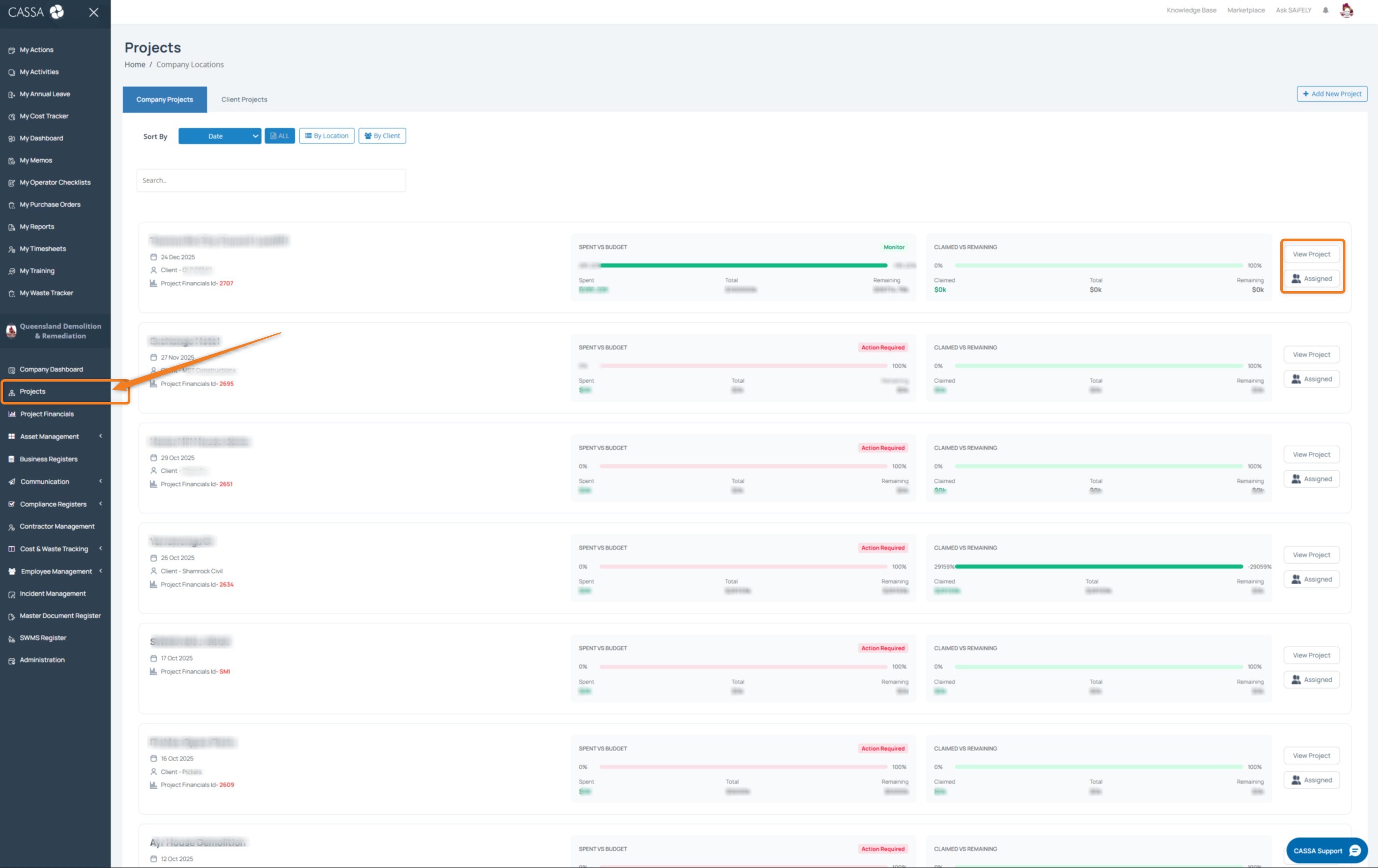
Access from the Administration Section
To view a project from the administration section:
Click on Administration (1) in the main navigation bar
Then click on Project Management (2)(we write this as Administration > Project Management) and you will see a list of your projects:
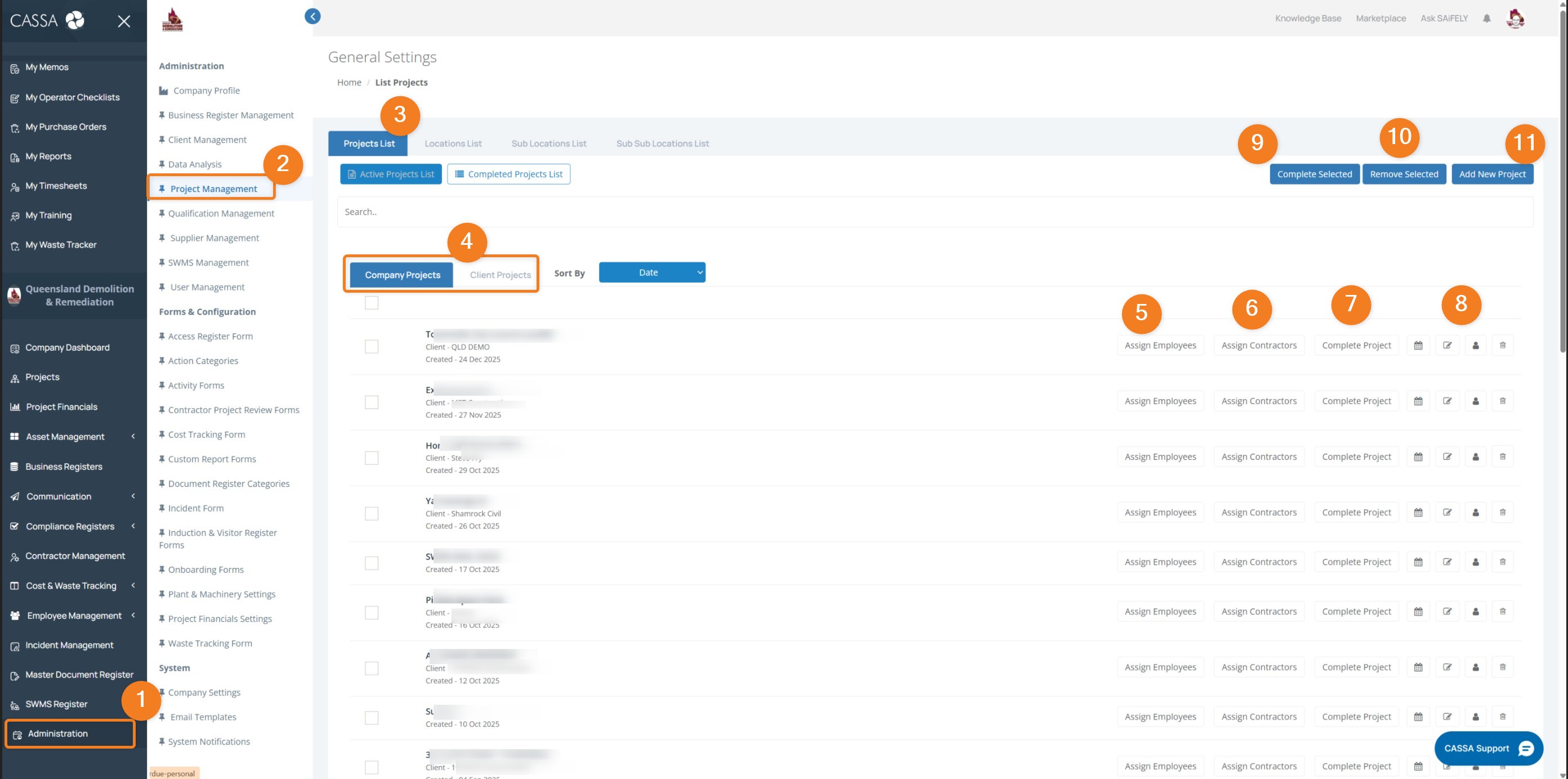
As there's a lot going on here, we'll walk through the main areas:
By default, you are taken to the Projects List tab. As you can see in the grid, this displays your Company Projects (4) by name. Alongside this tab, are the Locations List, Sub Locations List, and Sub sub Locations list tabs. Click on either tab to display your projects according to that filter.
By default, CASSA shows Company Projects. Click on the Client Projects tab to view your client projects.
Within each project, you can view and action the following button functionality:

Assign Employees: this takes you to the assign employees/roles dashboard.
Assign Contractors: this takes you to the assign contractors dashboard.
Complete Project: click the complete project button to close off the project (a confirmation is required)
Project Action buttons

Project Action buttons:
View calendar: view project calendar items
Edit project: takes you to the initial project setup form, where you can edit the project details
Project Assignees: shows a popup containing those currently assigned to the project
Delete project: if the project is no longer required, click here to confirm deletion and to then delete it.
Main Action buttons
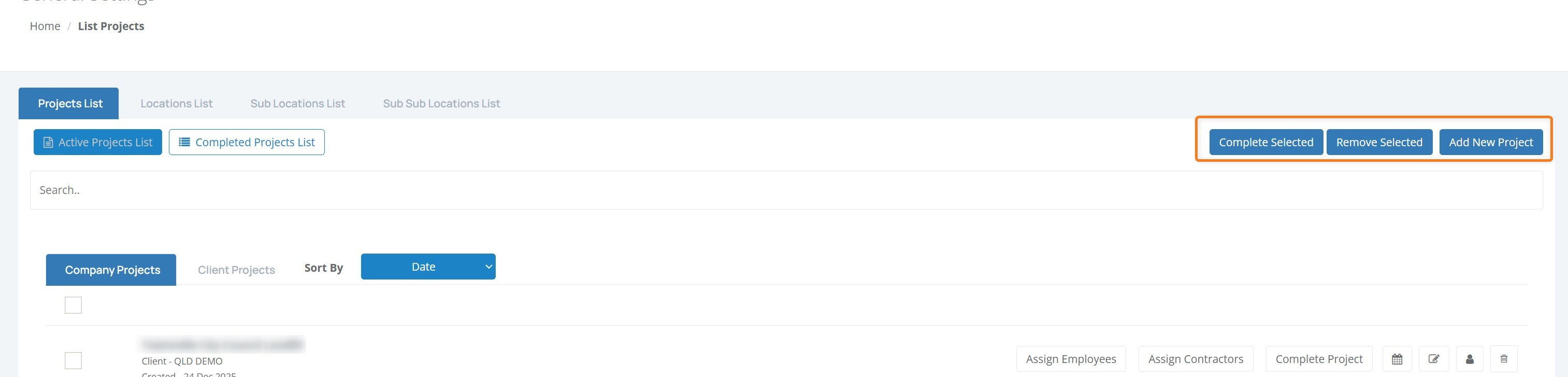
Complete Selected: you can complete multiple projects at the same time, by clicking in the check box and then by clicking on the Complete Selected button.
Remove Selected: likewise, you can remove multiple project by clicking in the check box and then clicking on the Remove Selected button.
Add New Project: Clicking here will take you to the create project dialog.