


Watch a quick walkthrough here:
Steps
From the Company Workspace, expand Asset Management in the main menu.
Click Add SDS in the top-right corner of the SDS Register.
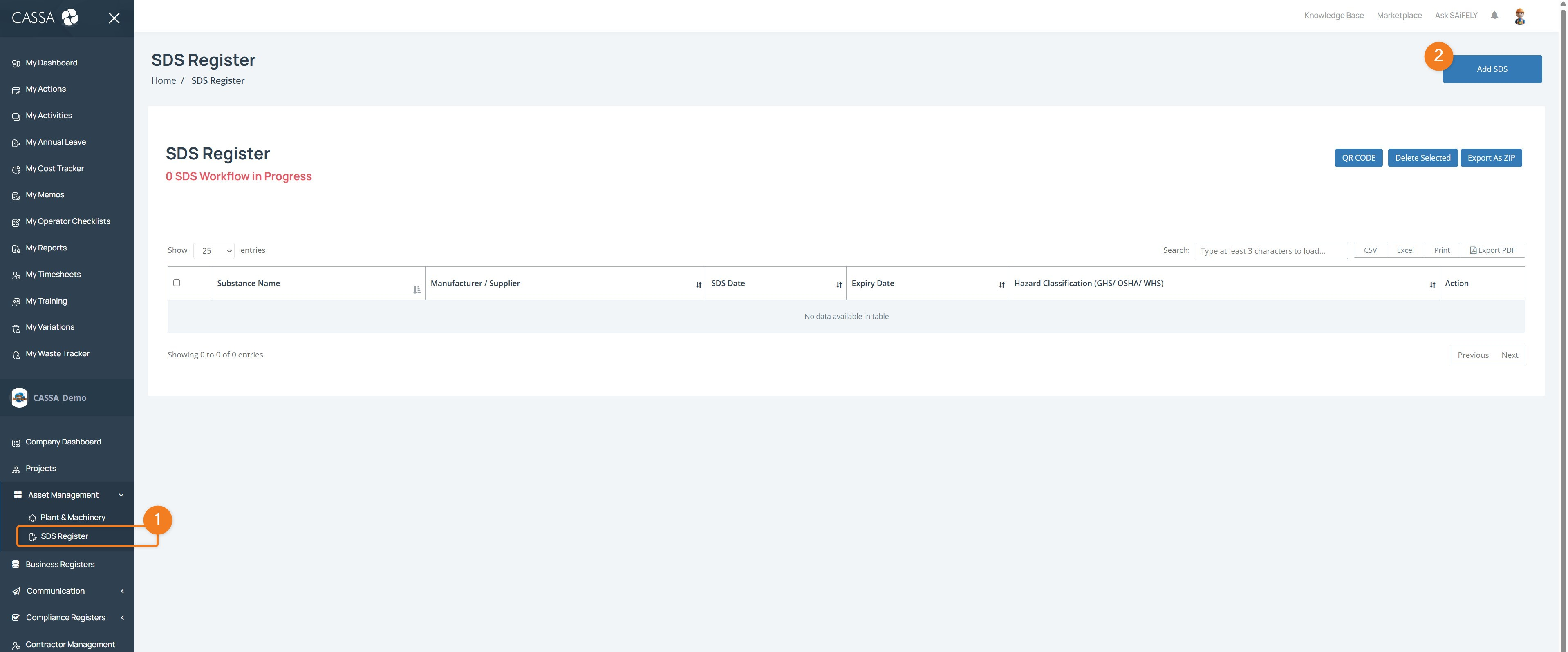
The Add SDS screen opens.
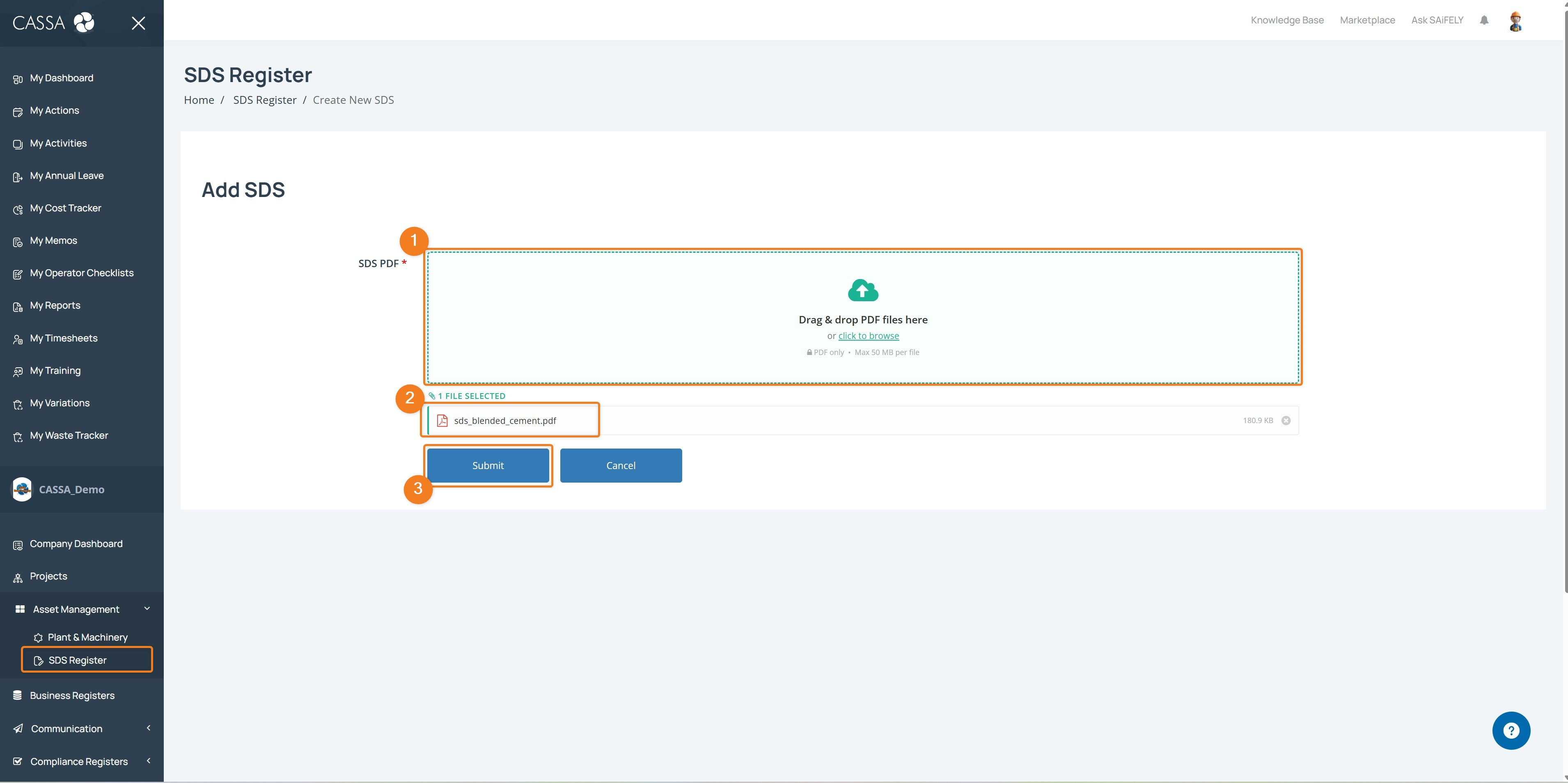
Upload the SDS
The SDS PDF field is required.
To upload an SDS:
Drag the PDF file into the upload area (or alternatively, click click to browse and select the PDF from your device).
Check that the correct file has been selected.
Click Submit.
Note: The SDS must be uploaded as a PDF file. The maximum file size is 50 MB.
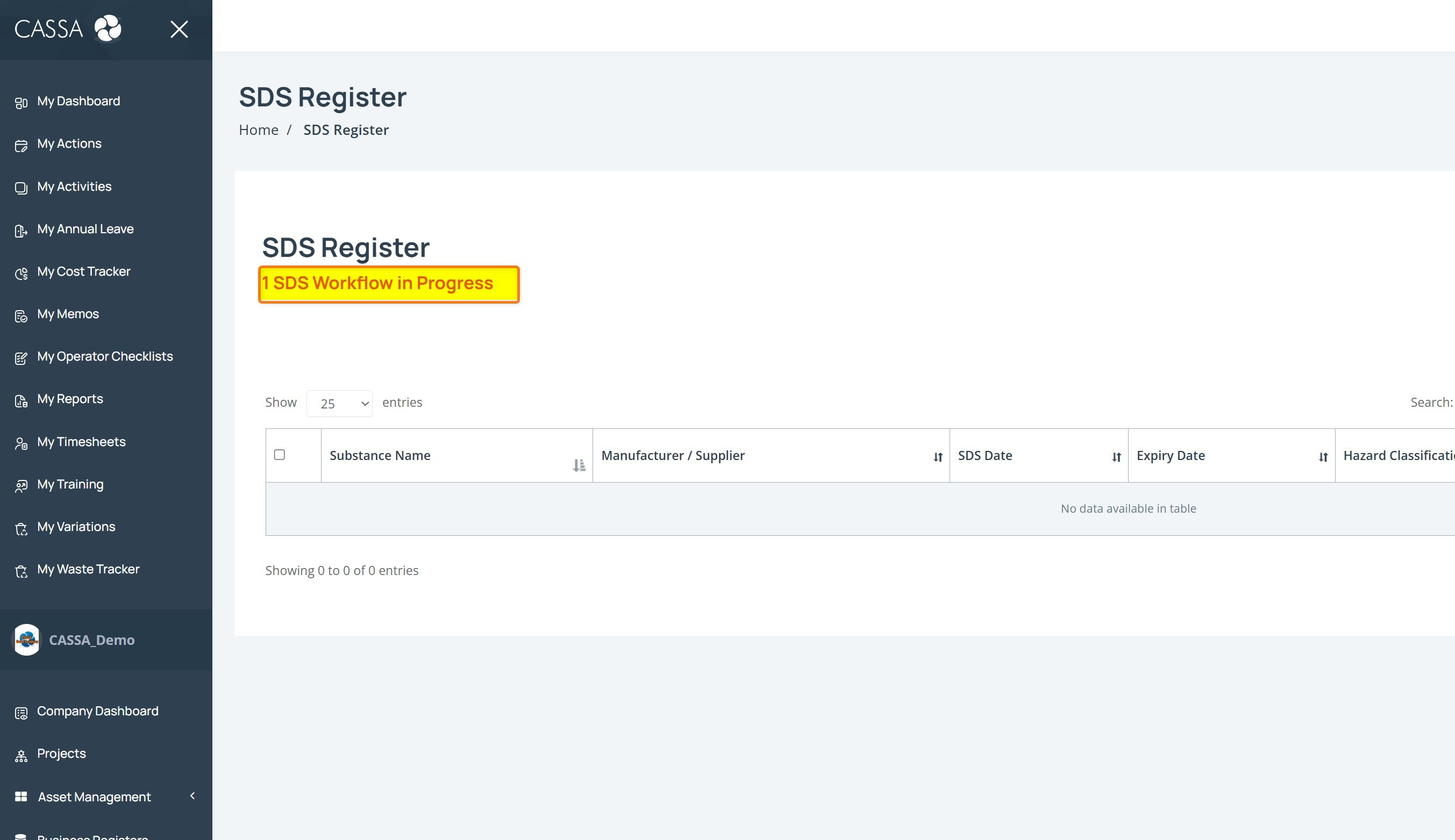
Once submitted, CASSA processes the SDS and adds it to the SDS Register. Processing will take a few minutes and you will see the SDS Workflow in Progress message:
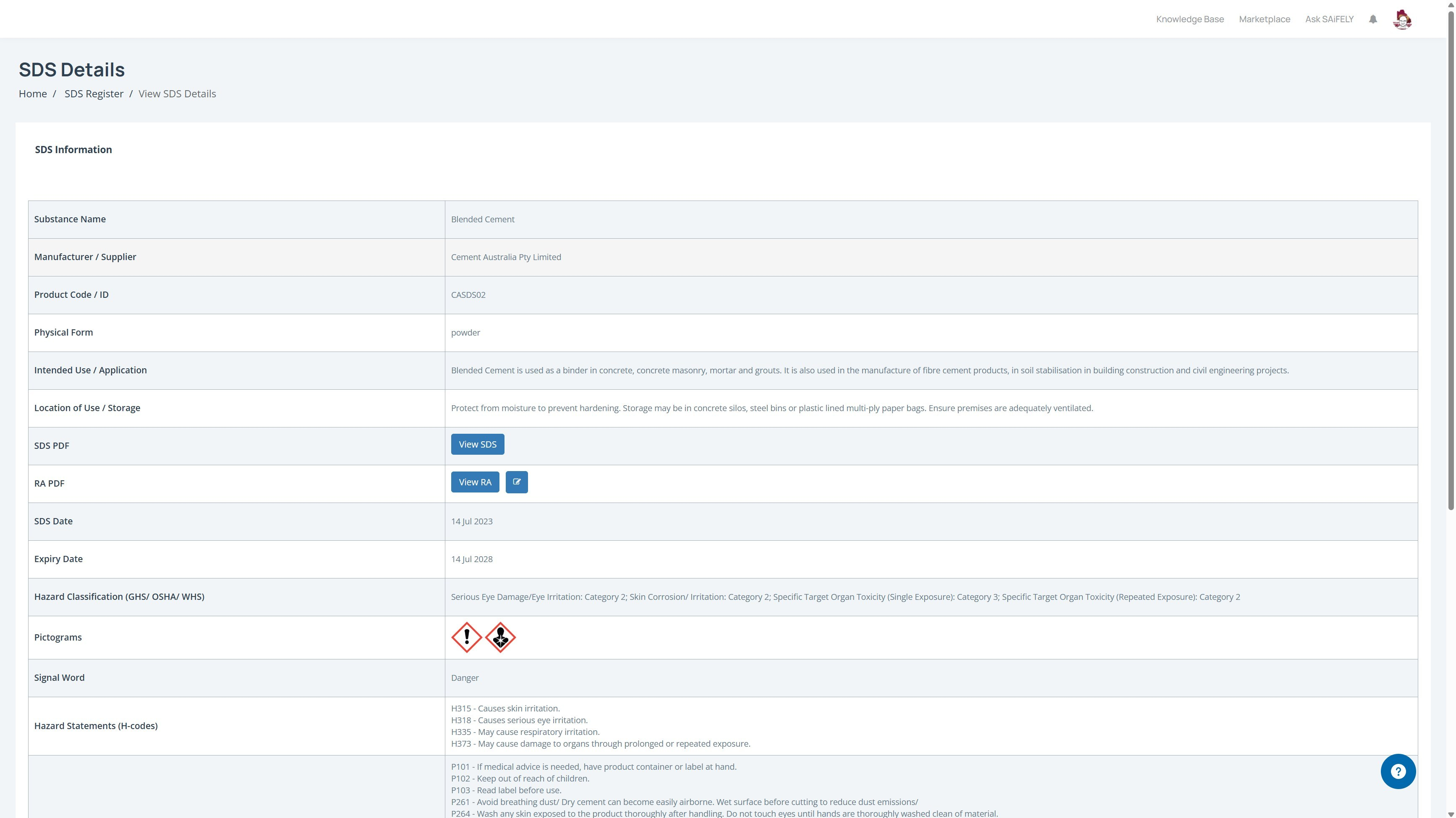
When uploaded, it'll appear in the register.
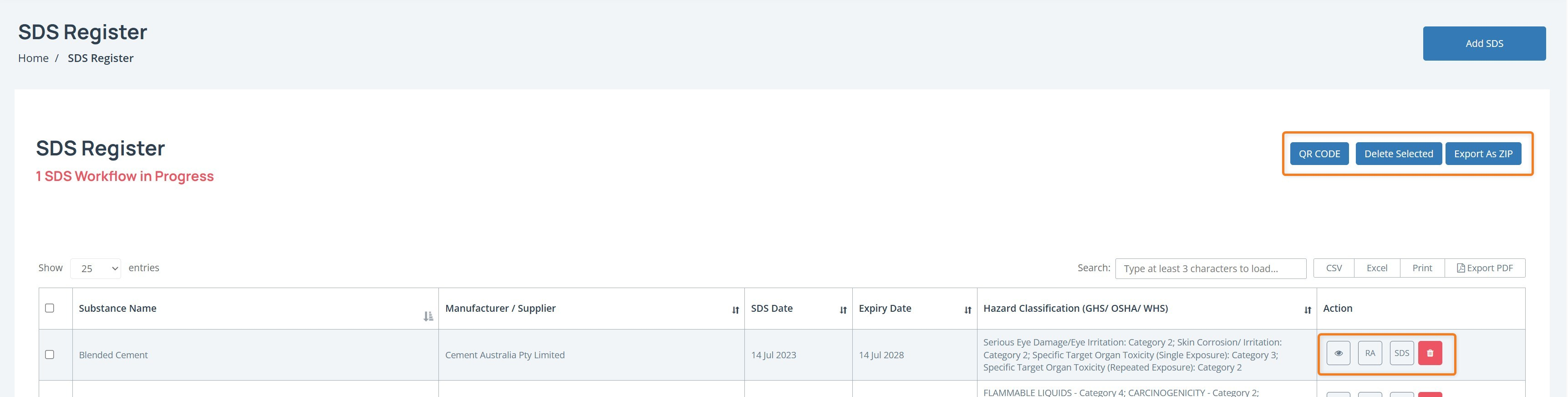
In the Action column, you can see:
Cancel the Upload
If you do not want to add the SDS, click Cancel instead of Submit.
You will return to the SDS Register without adding the file.