


CASSA comes with its own default register menu structure, but you can modify this to your own organisation's requirements.
View Registers
First, we'll look at the registers and how to view them.
In the navbar, click on Administration > Register Management > Menu Structure and you'll see:
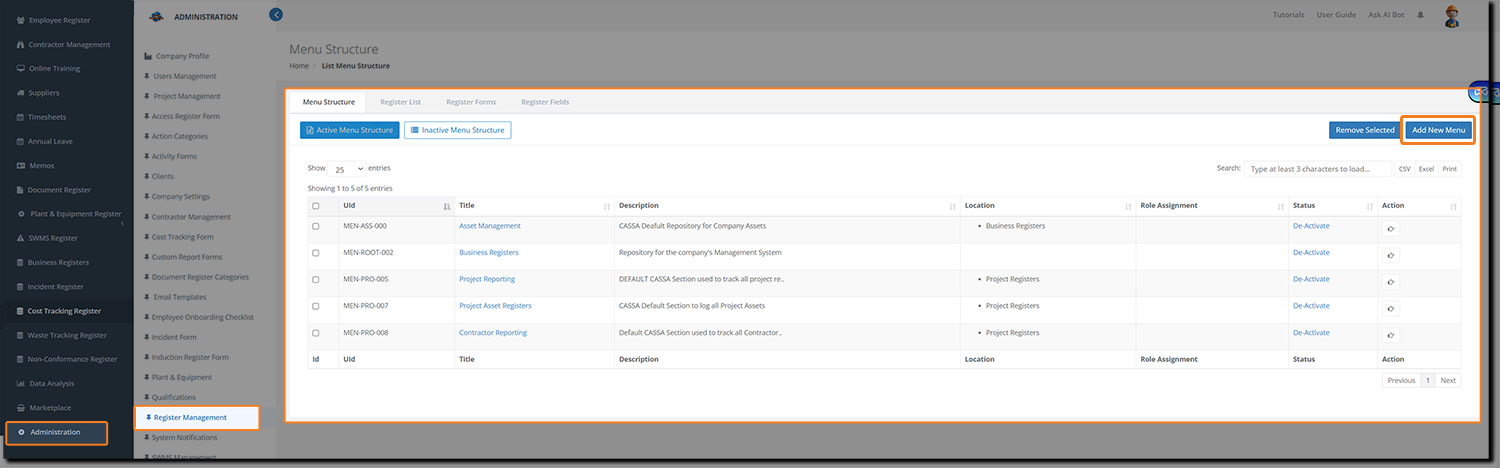
As you can see, in the Location column, we have 2 types of registers: Business Registers and Project Registers.
View Business Registers
Business registers are accessible through the main navbar:
In the navbar, click on Business Registers and you'll see:
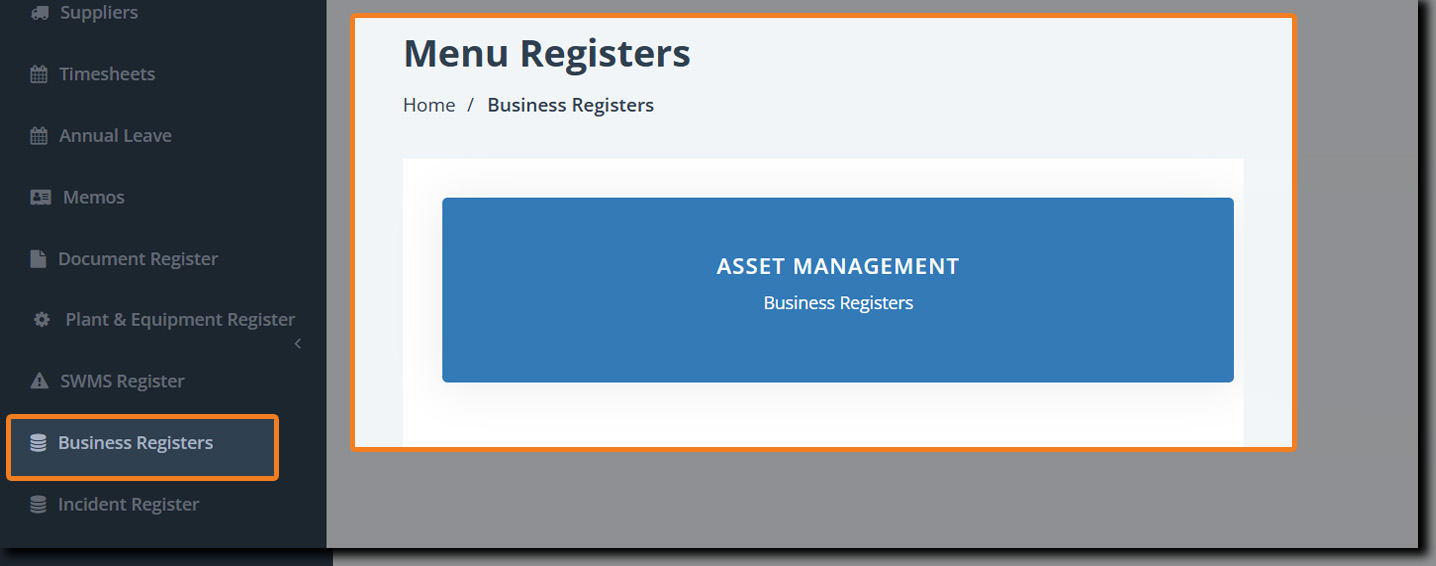
There's only the one, Asset Management, register listed. Click on the button to access the register.
View Project Registers
Project registers are viewed on an individual project basis.
To view project registers:
In the navbar, click on Projects, then on the Project Name, and then on Project Registers and you'll see:
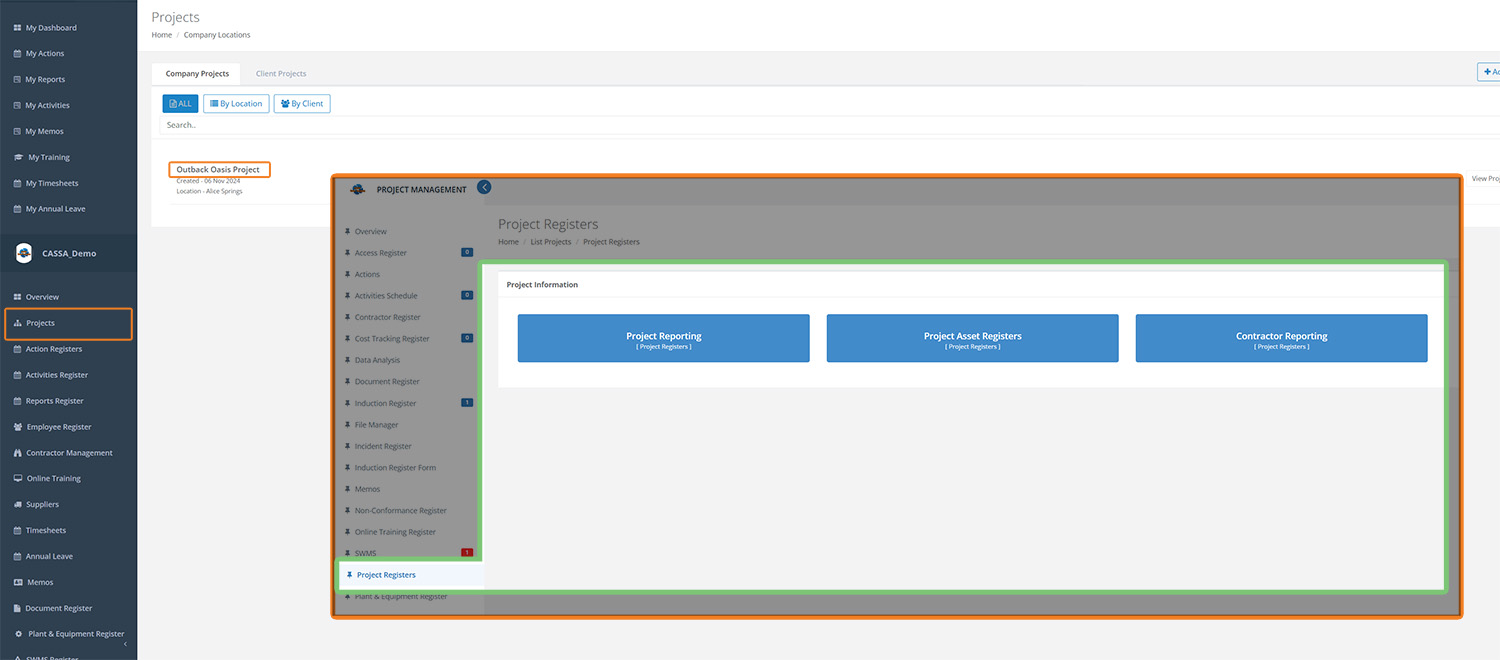
Here we have Project Reporting, Project Asset Registers, and Contractor Reporting, which correspond with those listed in the above register grid image.
Add New Register Menu
To add a new register menu:
From the navbar, click on Administration > Register Management > Menu Structure and you'll see:
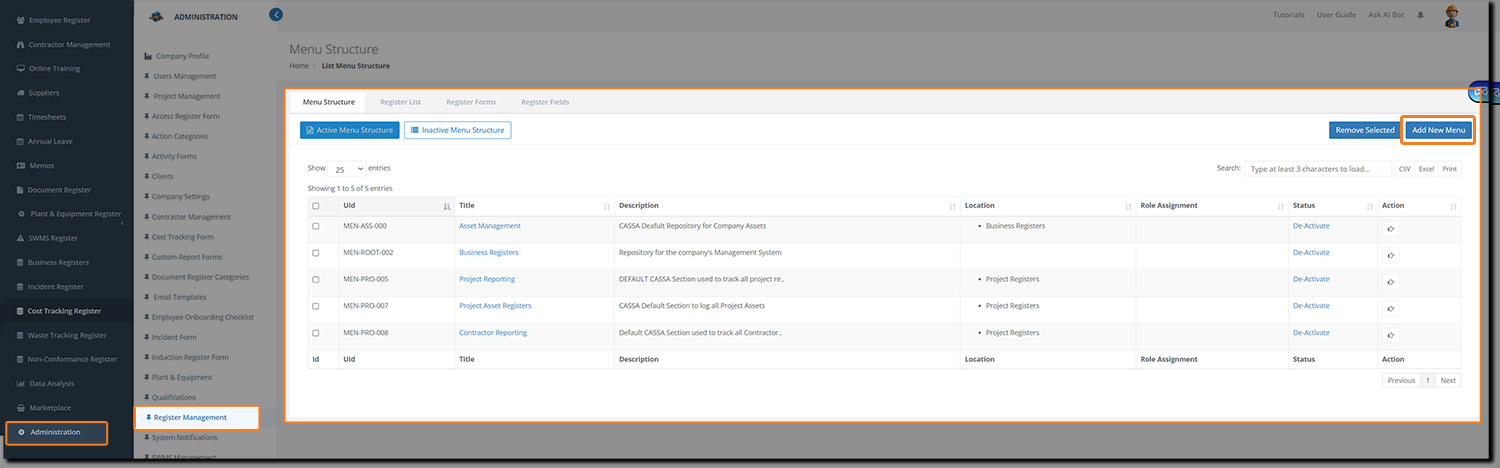
Click on the Add New Menu button and Add Menu Structure dialog will show:
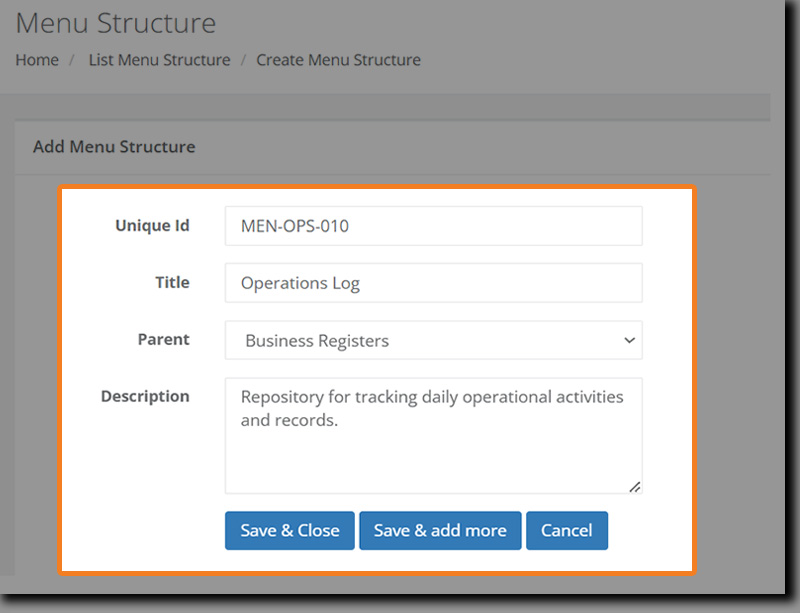
Add the following information:
Unique ID: add a logical and consistent ID for this menu item.
Title: Is what will appear in menu/registers.
Parent: If this is to be a sub-menu item, select the parent item here.
Description: Add a useful description explaining the register's purpose.
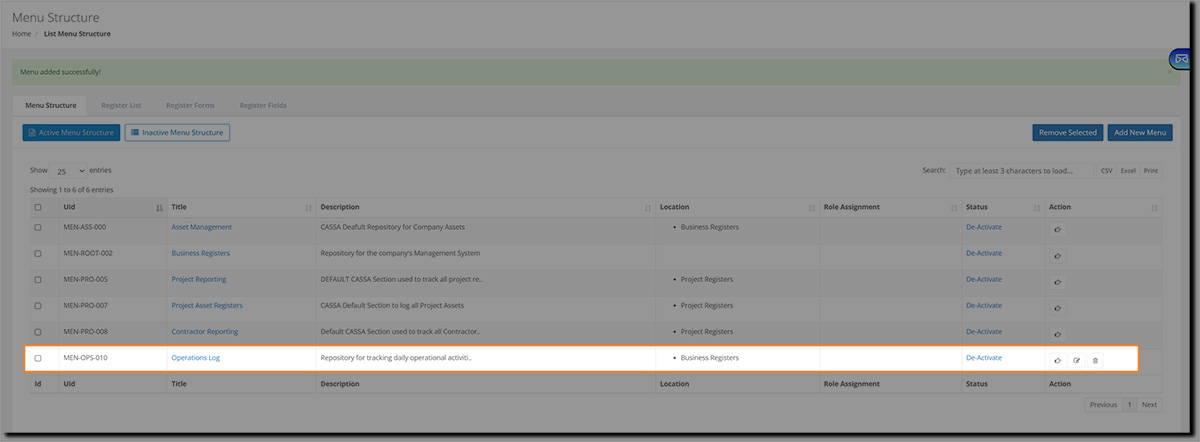
When done, click on Save & Close. The dialog will close, the screen will refresh, and you will see your new menu item in the grid:.
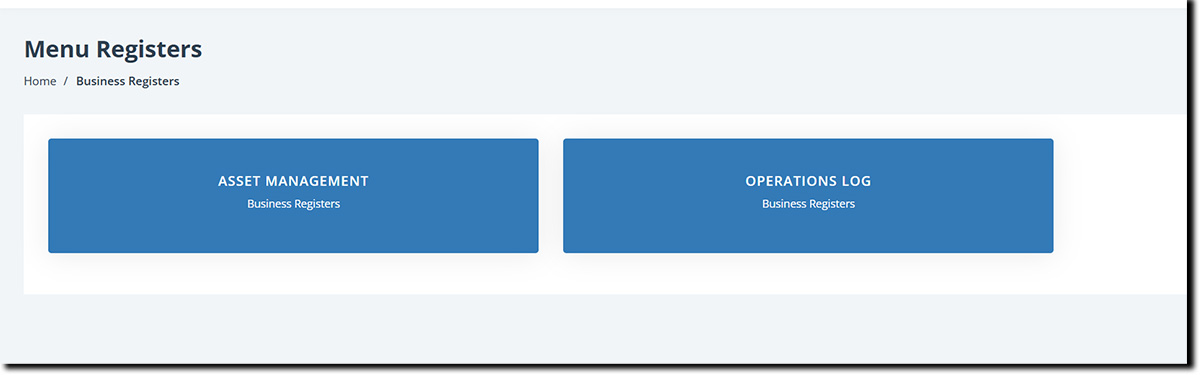
Because Business Registers was added as the parent item, if I click on Business Registers in the navbar I will see:
Assign Menu Access
However, at present, no-one can view this menu as access has not been assigned.
To assign access:
In the Action column of the Menu Structure grid, click on the Assign Menu button:

In the Assign menu Structure dialog, assign your users by role or name:
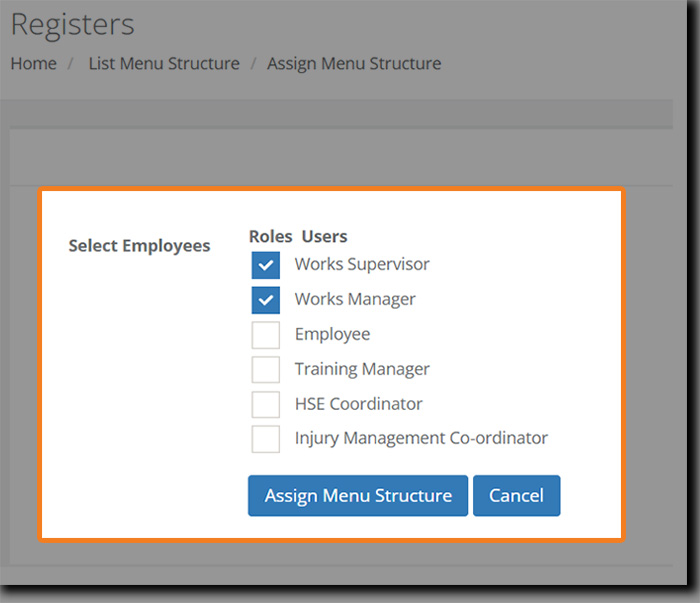
Click on the Assign Menu Structure button and the dialog will close and your menu item will be updated with assignees:

Assigned personnel will now be able to access/view your register.