


Access Operator Checklists
To access Operator Checklists, click on the menu item and the Operator Checklist grid will display:
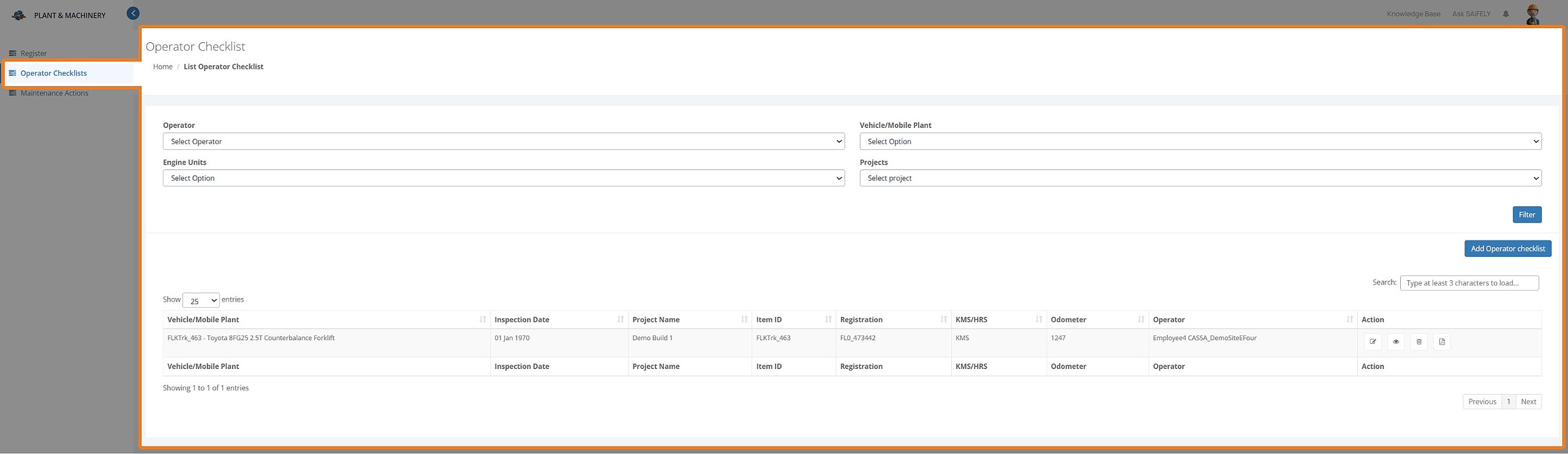
Here you can:
Search and filter
Add Operator Checklist
Filter options
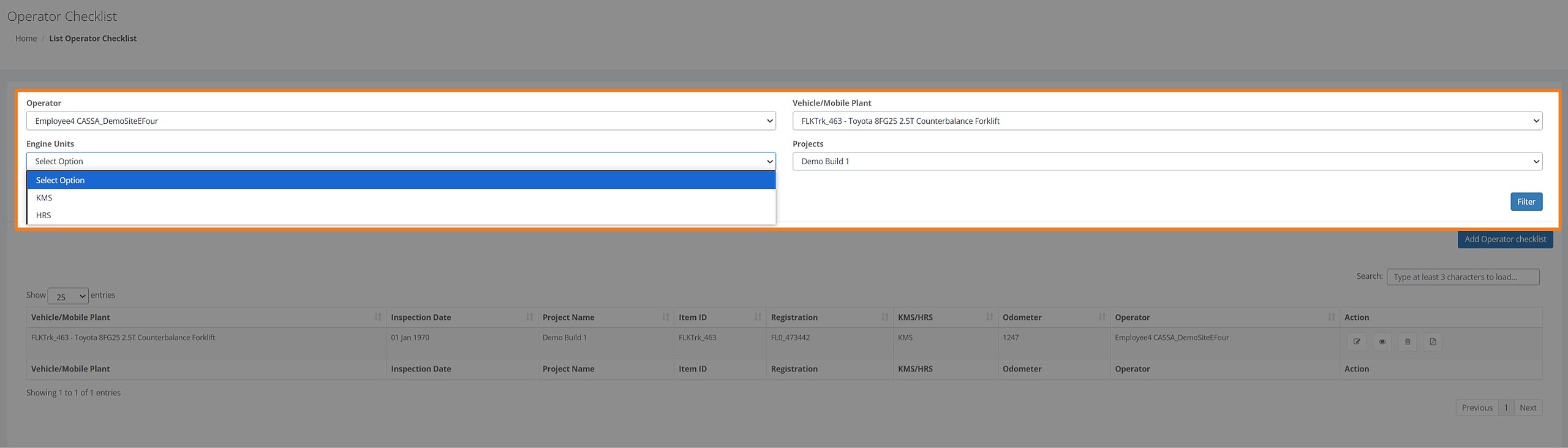
The search/filter options are Operator, Vehicle/Mobile Plant, Engine Units, Projects.
Select the required search criteria, click on the Filter button, and the grid display will update accordingly.
Add Operator Checklist
To add a new operator checklist:
Click on the Add New Operator Checklist button and you’ll see:
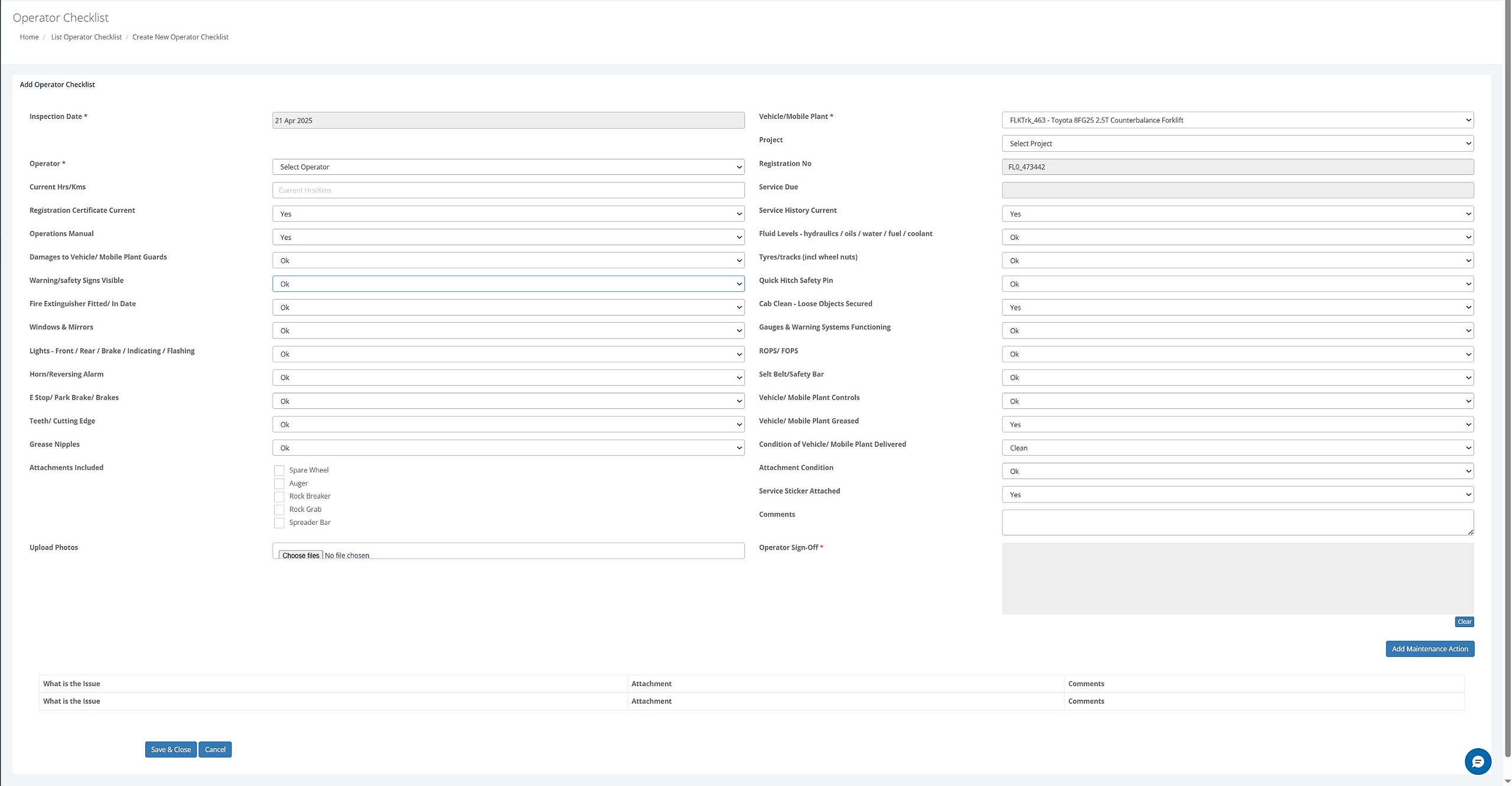
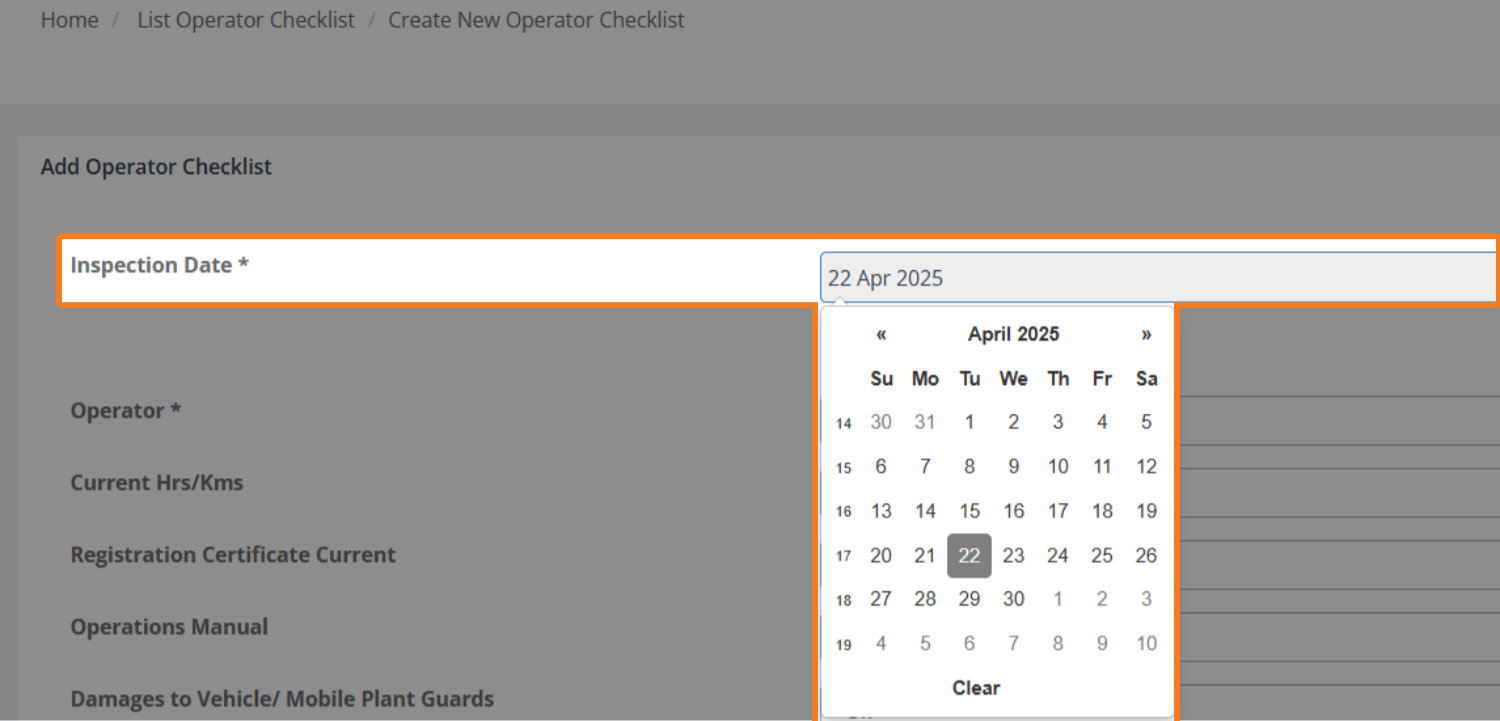
As the above image shows, there are several fields that your operator needs to complete. Each field is self-explanatory and consists of either a free-text input field, such as Current Hrs/Kms, a date picker, which you are already familiar with, or a pre-populated dropdown list:
Date Picker
Prepopulated Dropdown lists:
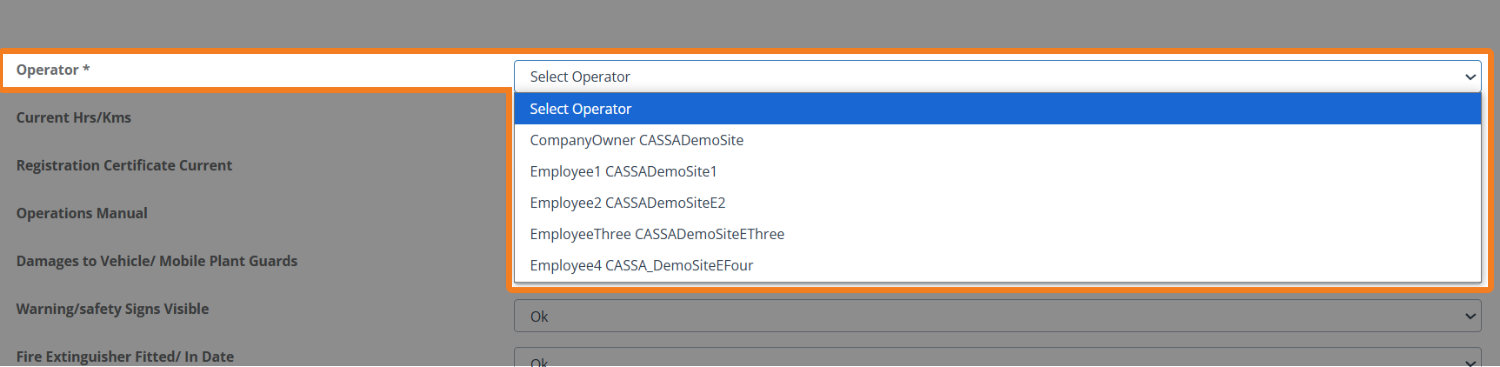
The following images show some of the types of prepopulated dropdown lists. Each should be self-explanatory:
Operator:
Condition status:

Retest/Replace:

Levels:

Manage Operator Checklists

Once an Operator Checklist has been created, you now have 4 options:
Edit
Show
Delete
PDF
Edit Operator Checklist
To edit the Operator Checklist:
Click on the Edit button and you’ll see:
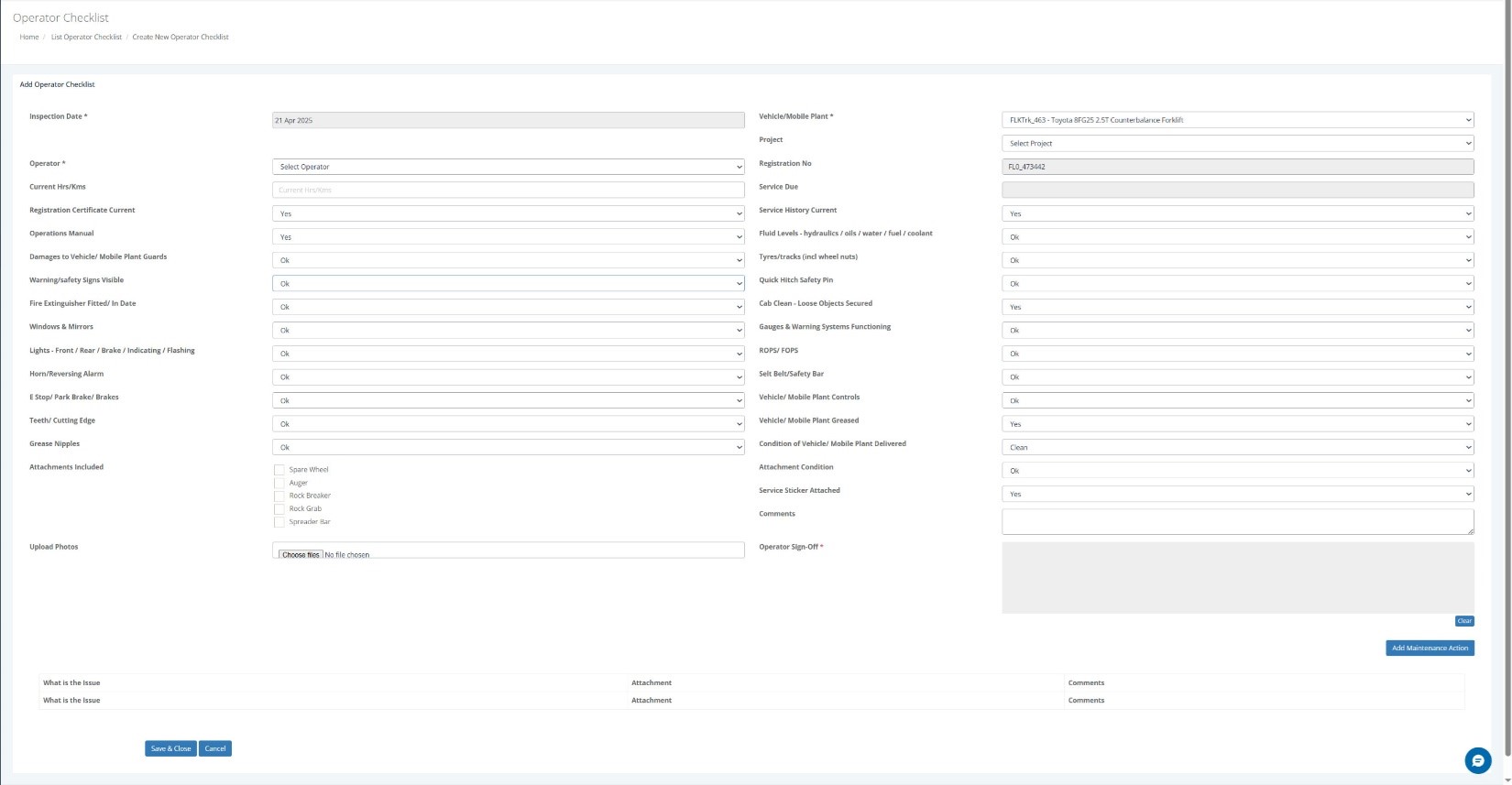
The only difference between this and the add operator checklist is certain fields, such as the vehicle/plant type, the Registration No., Service Due, etc., are fixed.
Make your changes and, once complete, complete the Operator Sign-Off field (with your mouse) and then click on the Save & Close button.
The checklist will update, the screen will refresh, and the record will be updated.
Show Operator Checklist
Click on the Show button to view the operator checklist:
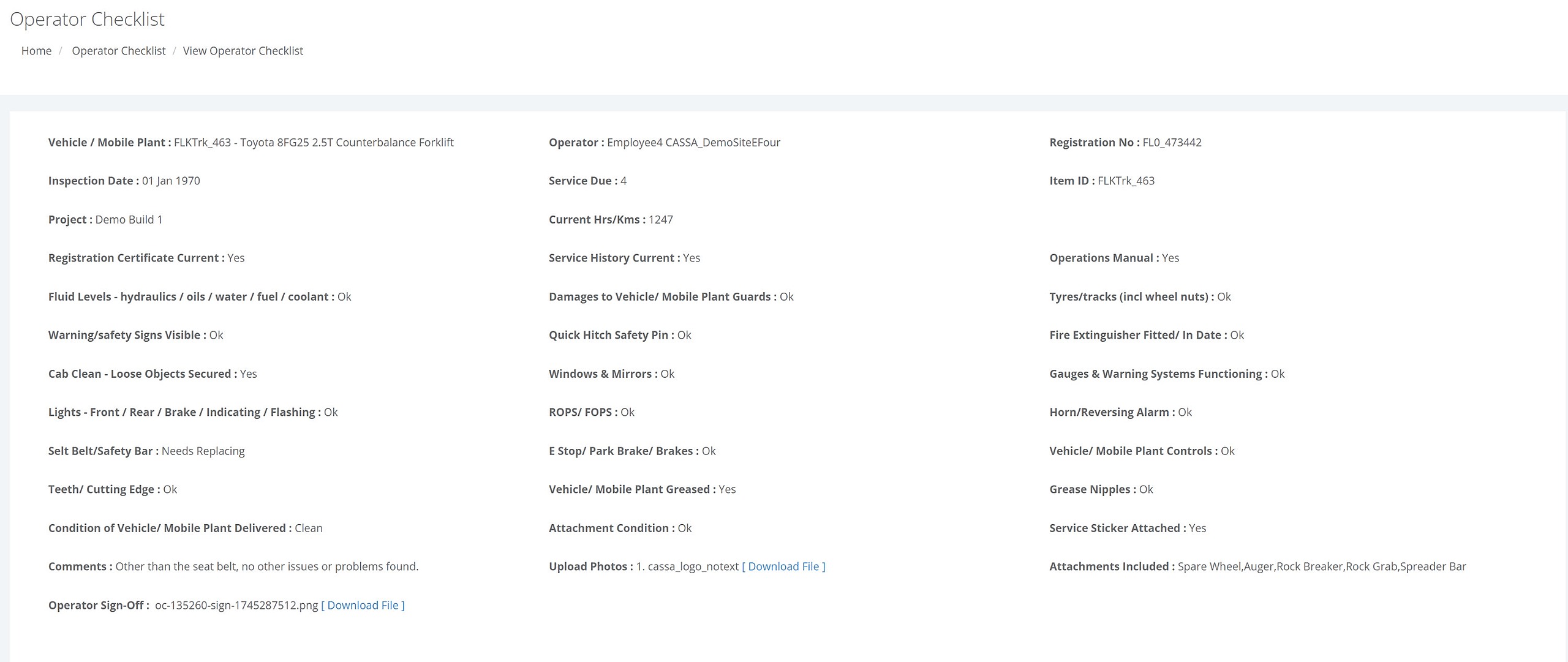
Show mode is a read only mode, so no fields can be changed.
Delete Operator Checklist
To delete an operator checklist:
Identify the checklist to be deleted
Click on the Delete button and the confirmation popup will display.
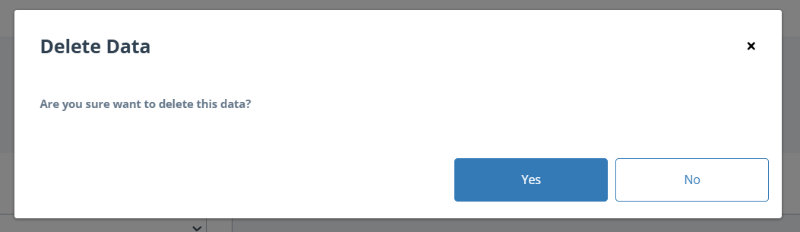
3. Click on Yes to delete the checklist.
Create PDF of Operator Checklist
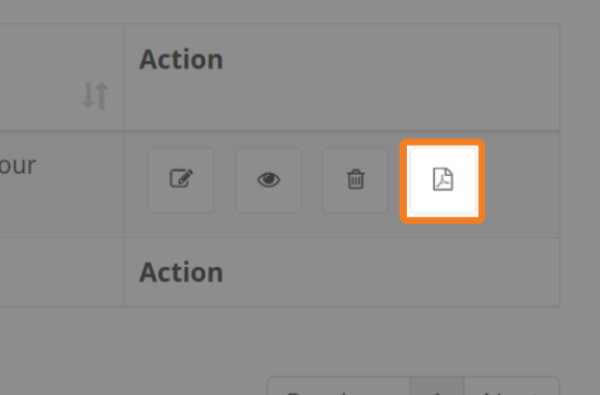
Click on the PDF button to download a pdf version of the checklist.
This will open in a new tab:
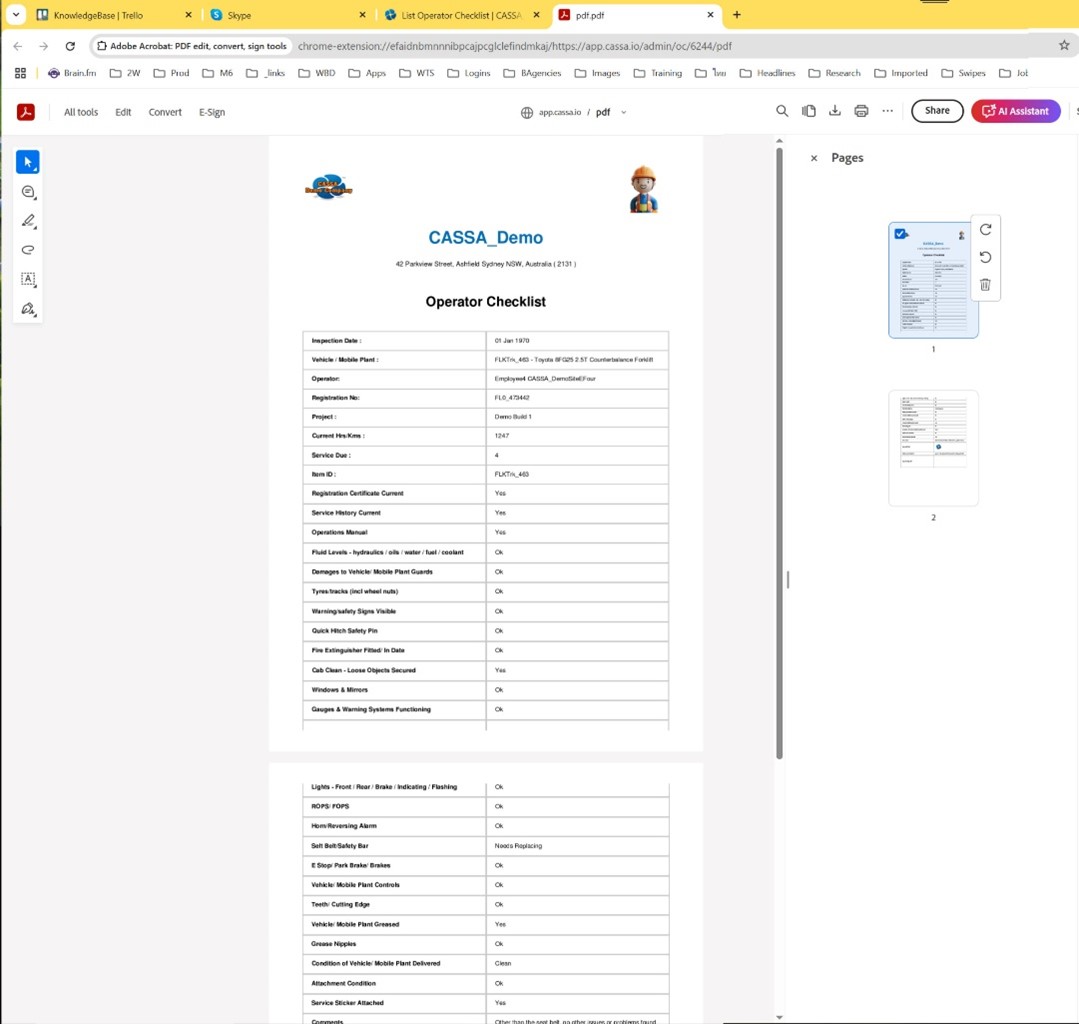
You can now download, print, etc.