


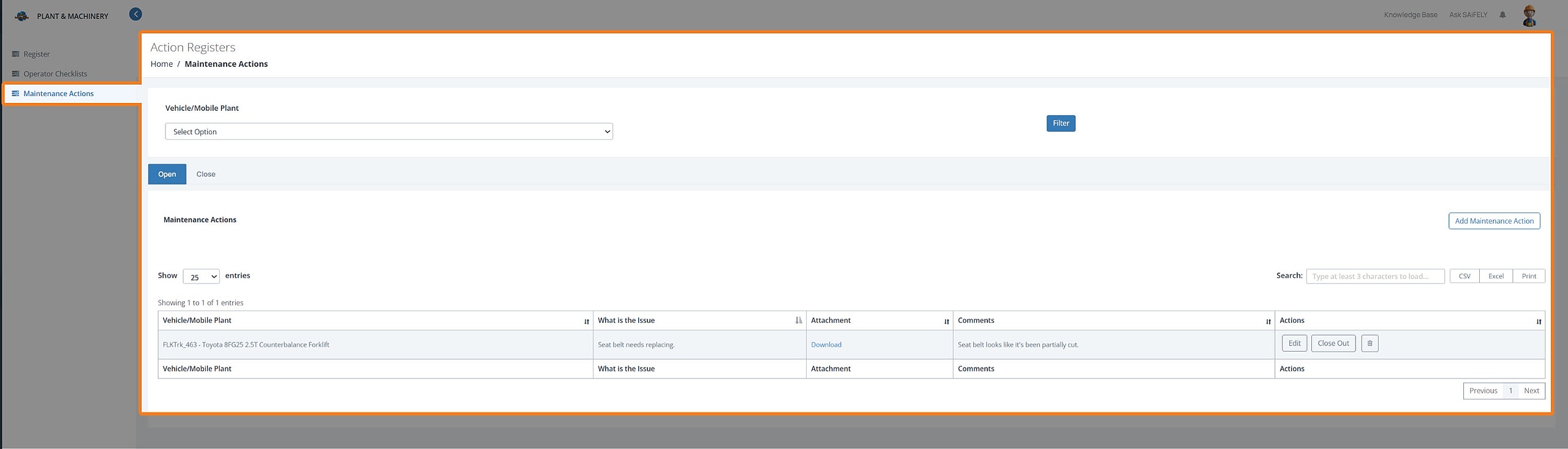
To view your open actions, click on the Maintenance Actions menu link:
Add Maintenance Action
If a maintenance action is required, click on the Add Maintenance Action button and the form will display:
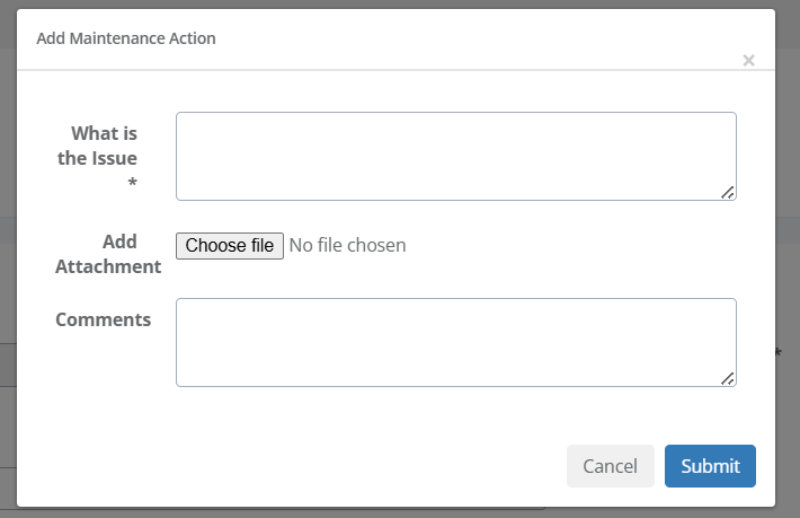
Enter a detailed description of the issue.
Add any attachments using the Choose File button.
Finally, add any additional comments.
Click on the Submit button and the action will be saved, the dialog box will close, and the grid updated with the new action:

Manage Maintenance Actions
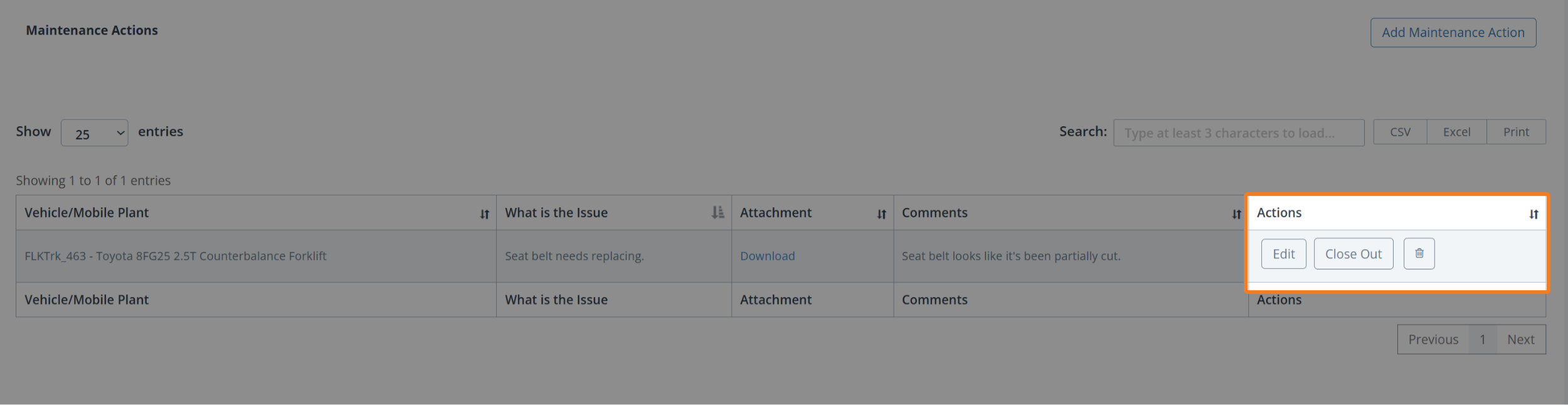
With each individual maintenance action, you can perform the following actions:
Edit
Close Out
Delete
Edit Maintenance Action
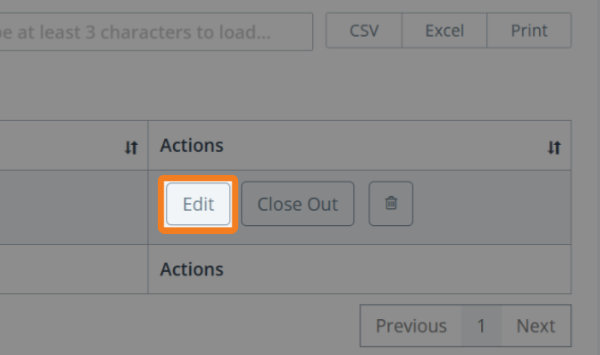
To edit a maintenance action:
Identify the action to be edited and click on the Edit button:
The action will be opened for editing:
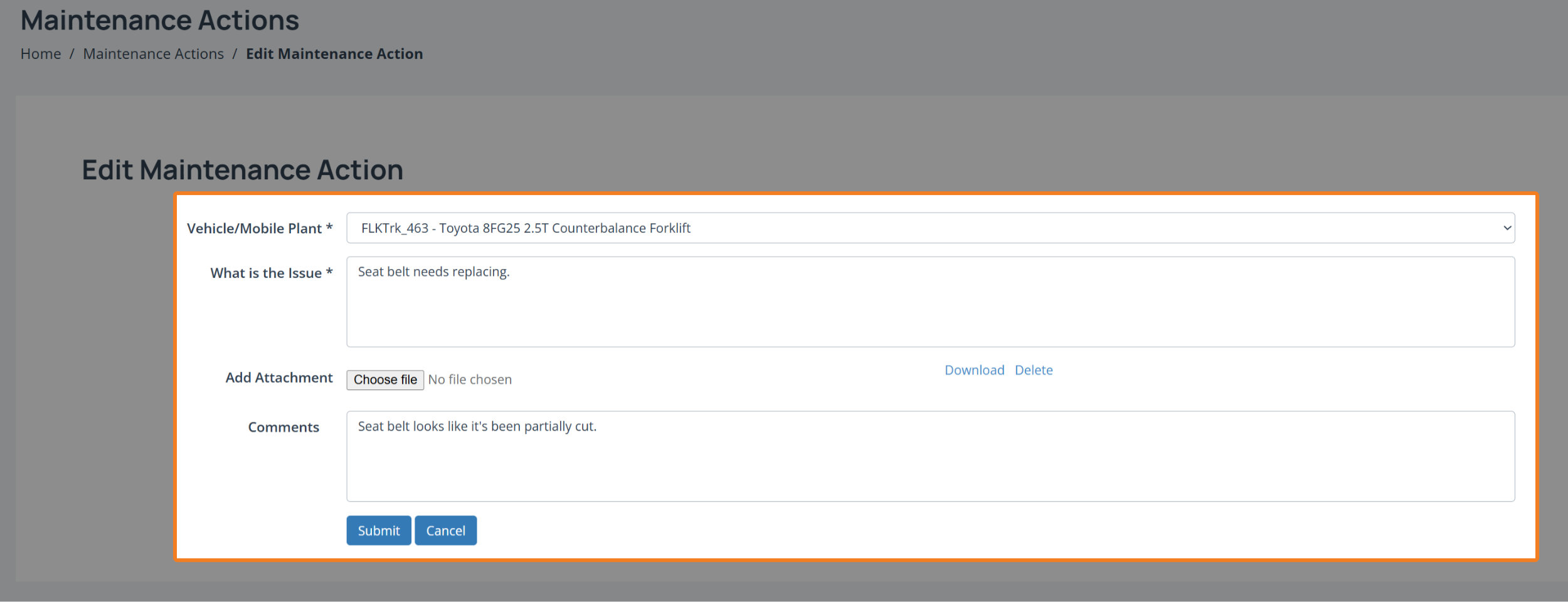
3. Make your changes and then click on the Submit button. Your changes will be saved and you'll be taken back to the maintenance action grid.
Close Out a Maintenance Action
There is currently no notification warning on the close-out so the action will be closed out as soon as you click on the button.
To close out a maintenance action, identify the action to be closed and then click on the close out button:
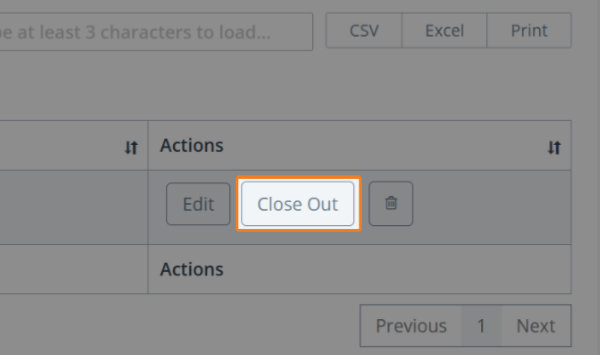
The action will be closed-out, removed from the Open tab, and added to the Closed tab.
Delete Maintenance Action
To delete a maintenance action:
Identify the action you no longer need and click on the Delete button.
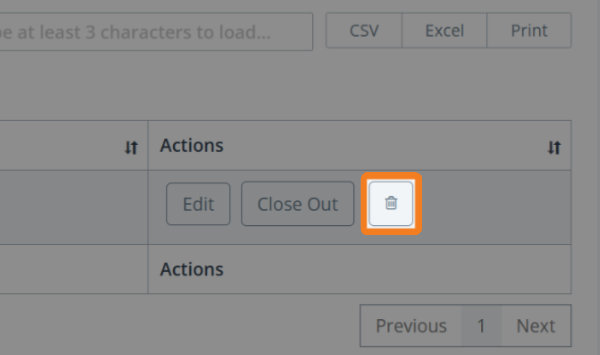
2. The following confirmation dialog will display:
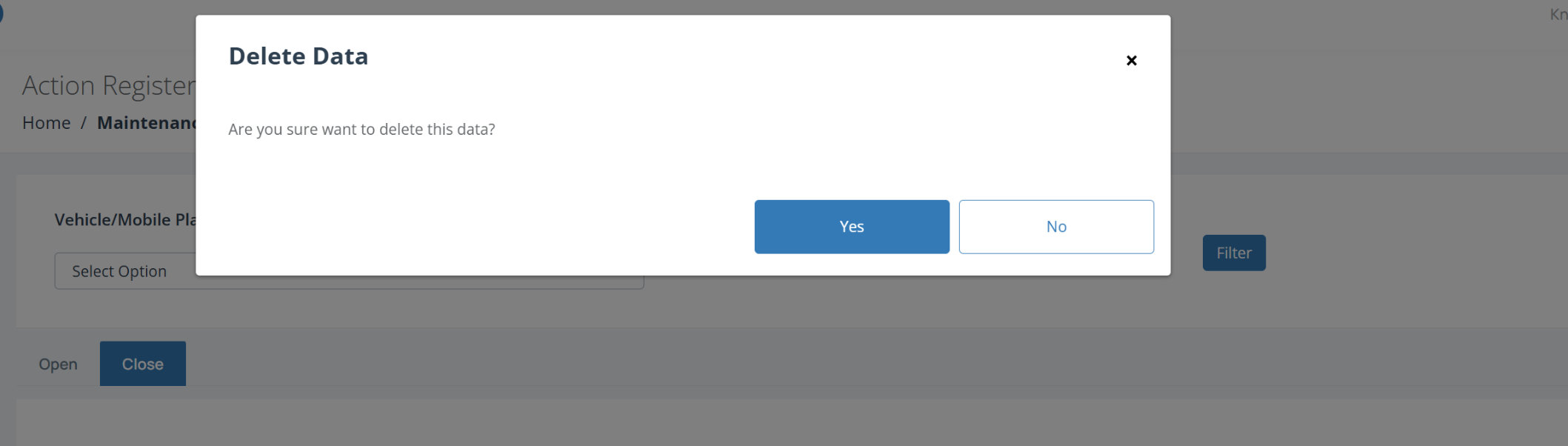
Click on Yes to delete the action. The dialog will close, the screen will refresh, and the maintenance action will be deleted.