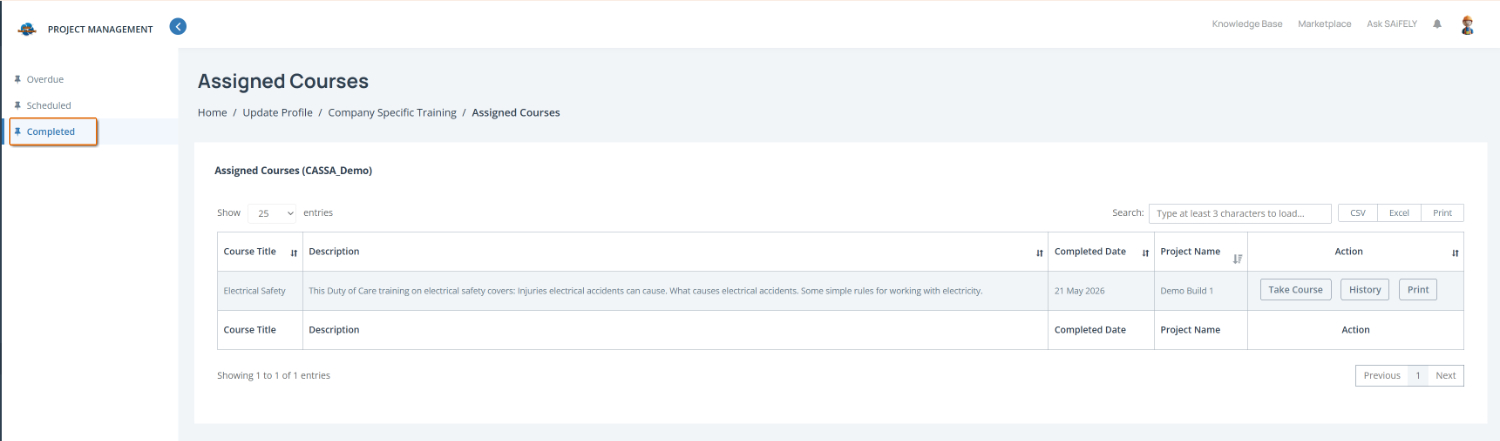

The Assigned Courses page displays training allocated to you through Company Specific Training. You can review course details, check due dates, launch training and view training history from this screen.
Scheduled Training
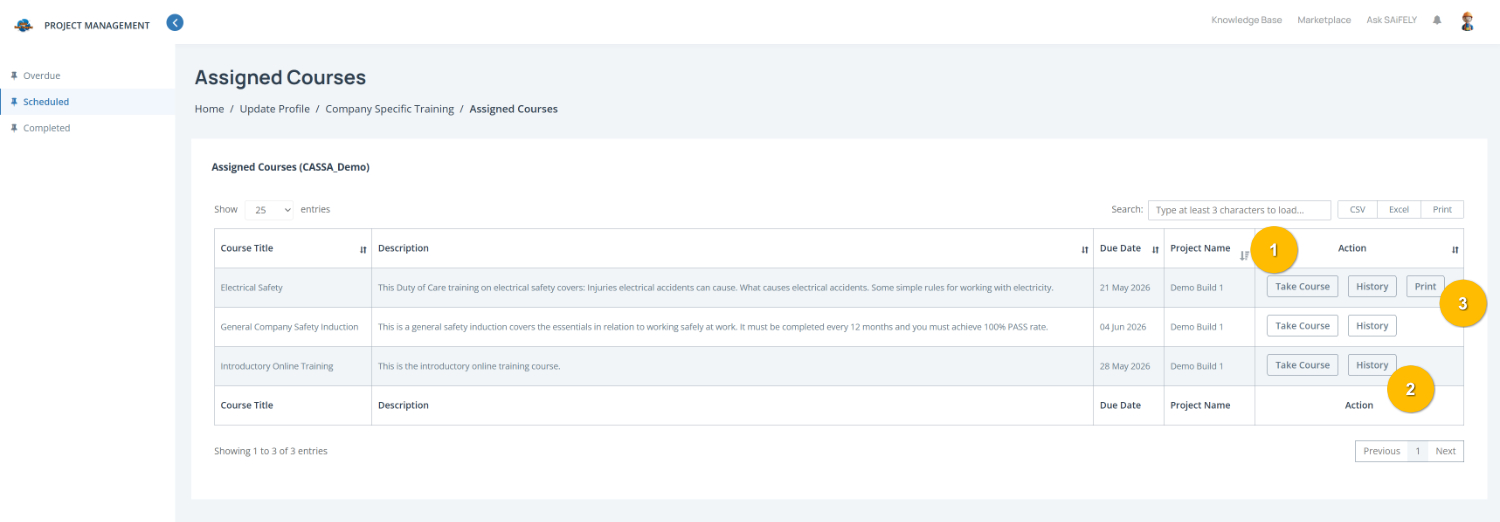
To complete this page:
Start a training course by clicking Take Course (1) in the Action column. This will open the selected training so you can begin or continue the course.
View training history by clicking History (2) to review previous attempts or completion records for a course.
Print a certificate by clicking Print (3) where available to download or print proof of completed training.
Review assigned training by checking the course table. Training items include the Course Title, Description, Due Date, and associated Project Name so you can see what training is required and when it must be completed.
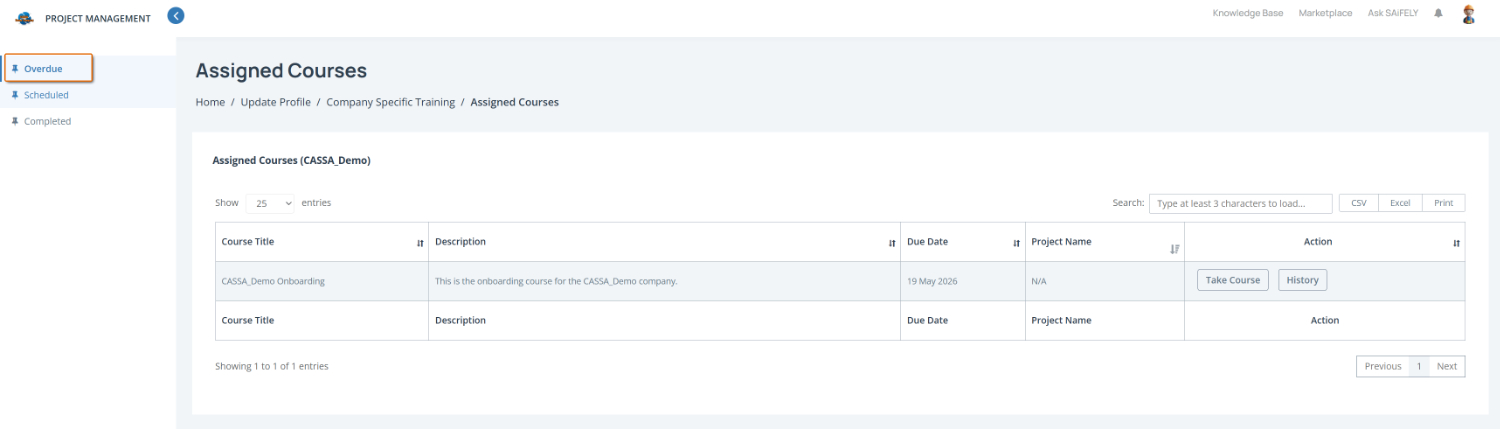
Filter courses by status by selecting Overdue, Scheduled, or Completed from the left-hand menu to view training based on its current status.
Note: Some company-specific training may include a due date and need to be completed before expiry or project deadlines.
You can also:
Search for a course using the Search field
Export course information using CSV, Excel, or Print options
Overdue Training
On the same Assigned Courses page, click on Overdue to view courses that need your attention.
Completed Training
Equally, click on Completed to view already completed training.