

The My Annual Leave page allows you to manage your leave requests from the CASSA mobile app. You can view the status of existing requests, search for specific entries, and submit a new annual leave request.
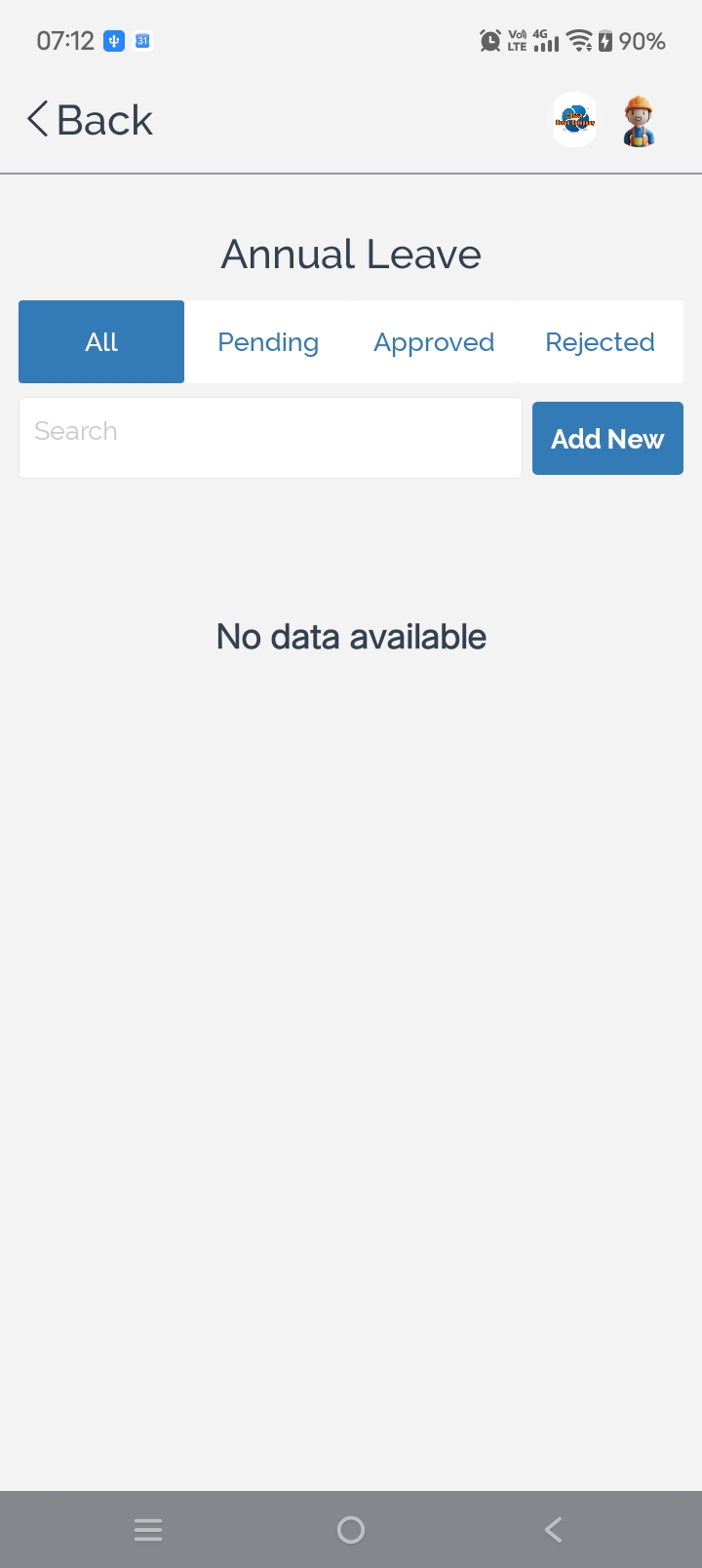
To review your annual leave requests:
Select the appropriate status tab to display the leave requests you want to view:
All – Displays all leave requests.
Pending – Displays requests awaiting approval.
Approved – Displays approved leave requests.
Rejected – Displays leave requests that were not approved.
Search for a leave request using the search field to quickly locate a specific entry.
Review your leave requests in the list below the search field. If no requests have been submitted, the page displays No data available.
To submit a new leave request:
Select Add New to open the annual leave request form.
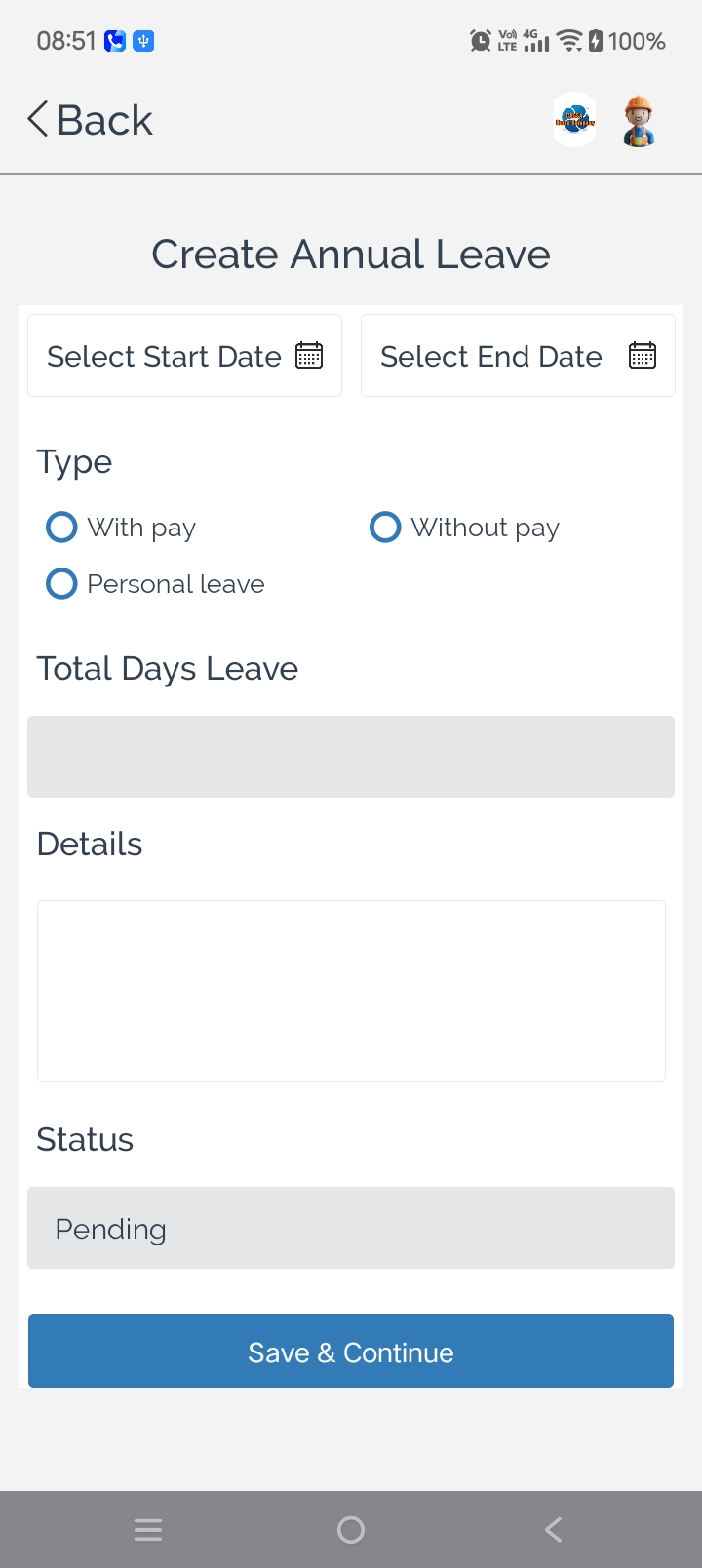
Complete the required information for your leave request.
Submit the request for approval.
Note: New leave requests are typically reviewed by your supervisor or manager before they are approved.
You can also:
Filter leave requests by status to monitor their progress.
Search for previous leave requests when reviewing your leave history.