

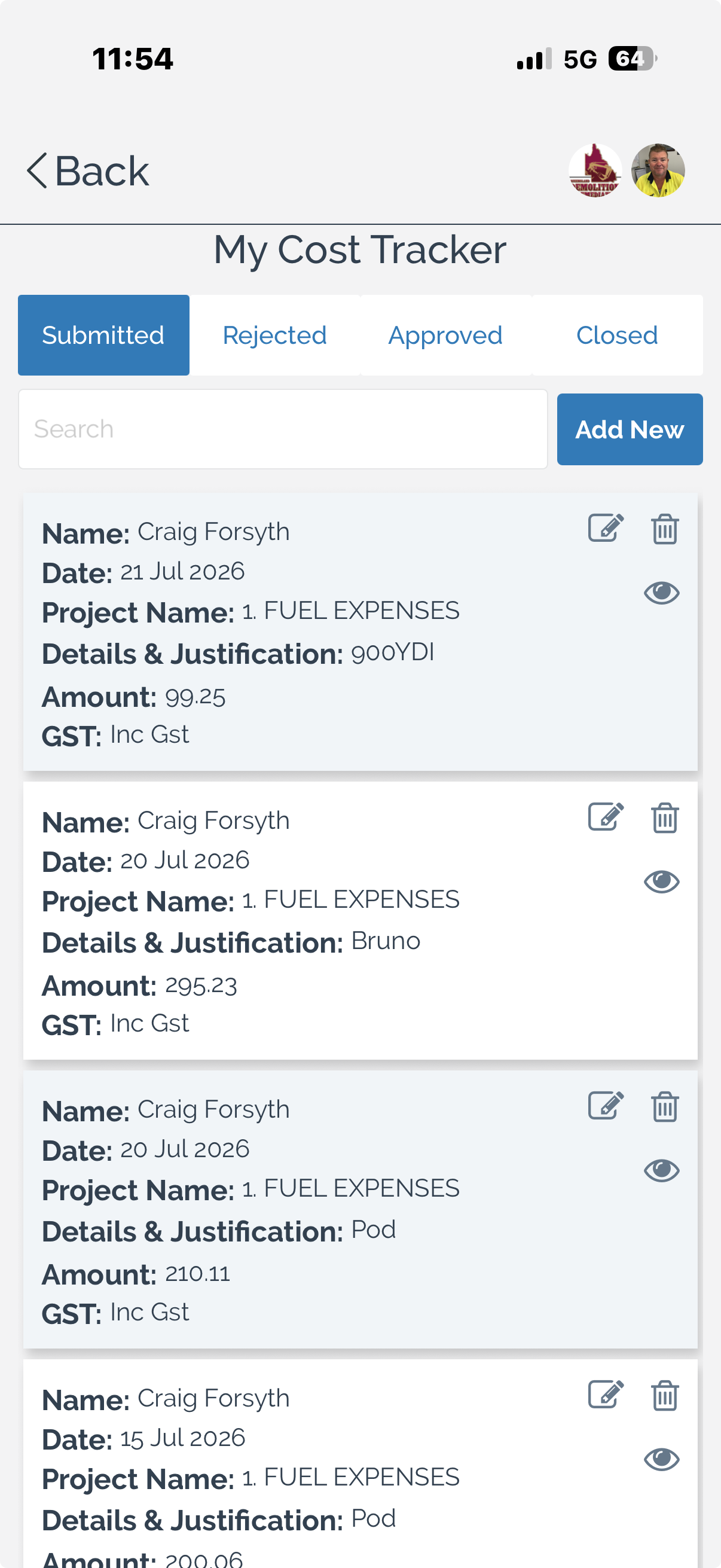
The My Cost Tracker page displays the cost records you have submitted for your projects. From this page, you can filter entries by status, search for specific records, create new cost entries, and edit, view, or delete existing records.
To review your cost tracking entries:
Select the appropriate status tab to display the records you want to view:
Submitted – Displays cost entries awaiting review.
Rejected – Displays entries that have been rejected.
Approved – Displays approved cost entries.
Closed – Displays completed or finalised entries.
Search for a cost entry using the search field to quickly locate a specific record.
Review the details shown for each entry, including:
Employee name
Date
Project name
Details and justification
Amount
GST status
To create a new cost entry:
Select Add New.
Complete the required cost tracking information.
Submit the entry for review or approval.
Manage Cost Entries
Existing cost entries can be maintained directly from the list.
To edit a cost entry:
Select the Edit icon beside the required entry, update the information, and save your changes.
To view a cost entry:
Select the View icon to open the entry and review its details.
To delete a cost entry:
Select the Delete icon beside the entry and confirm the deletion when prompted.
Note: Depending on your organisation's workflow, approved or closed cost entries may no longer be available for editing or deletion.
You can also:
Filter entries by status to monitor their progress through the approval process.
Search for specific entries when managing multiple project expenses.
Review submitted, approved, rejected, and closed records from a single screen.