


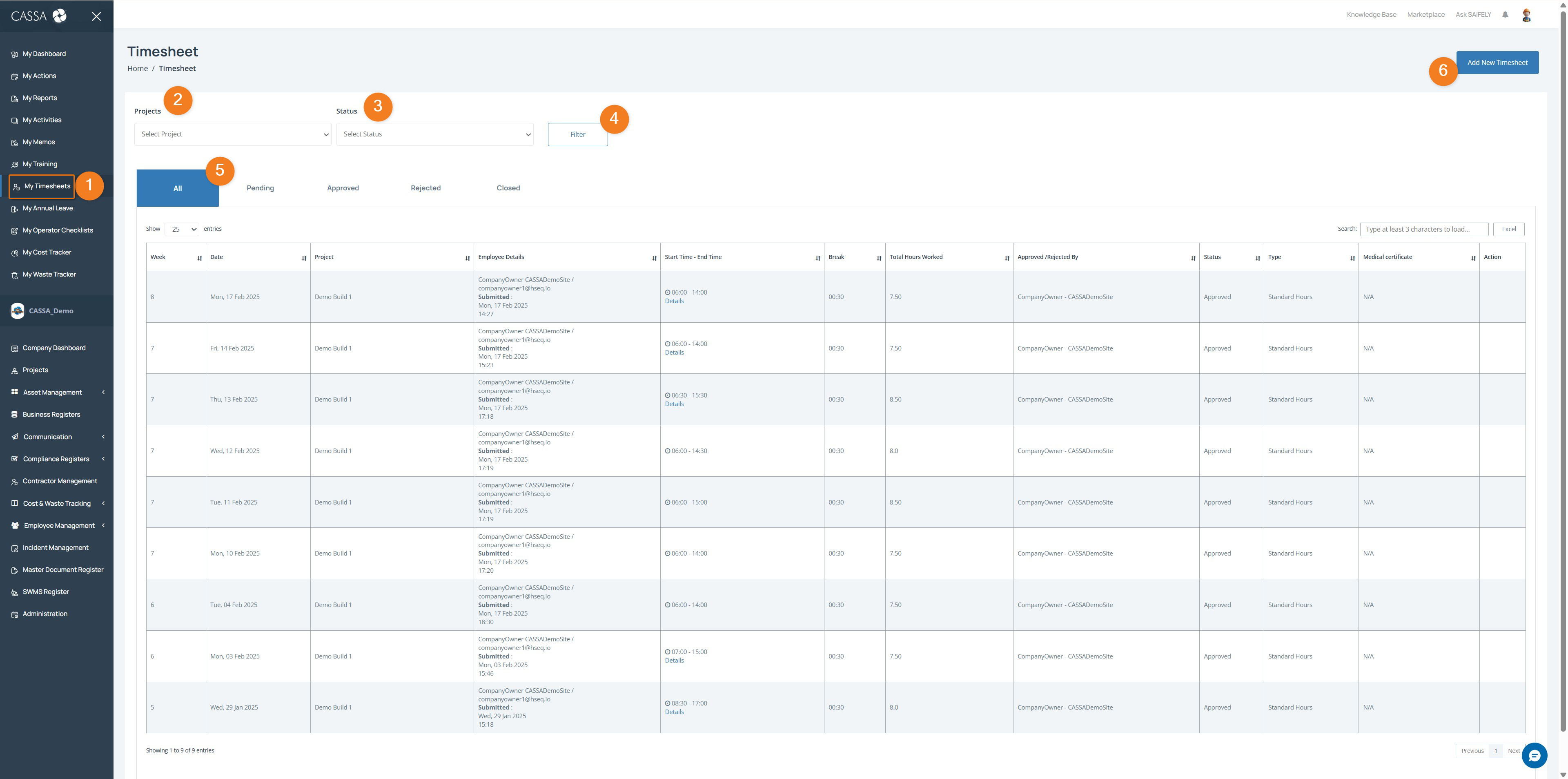
The My Timesheets page (1) allows you to track submitted work hours, monitor approval status, and create new timesheets. You can filter timesheet records by project or status and review previous submissions.
To complete this page:
Open My Timesheets by selecting My Timesheets (1) from the left-hand menu.
Filter timesheet records by selecting a Project (2) and Status (3), then selecting Filter (4) to update the results.
View timesheets by status using the tabs (5) to filter between All, Pending, Approved, Rejected, and Closed timesheets. The Pending tab is shown by default.
Note: The records shown will depend on your submitted timesheets and approval progress.
Review timesheet details in the register table, including the work Week, Date, Project, work hours, break times, total hours worked, approval status, and timesheet type.
Submit a new timesheet by clicking on the Add New Timesheet (6) button.
You can also:
Search for a specific report using the search field
Export report records using CSV, Excel, or Print options where required.