

The Add Timesheet page is used to record the hours you have worked on a project. You can select the project, enter your working hours, specify the type of shift, and provide any additional information before submitting the timesheet.
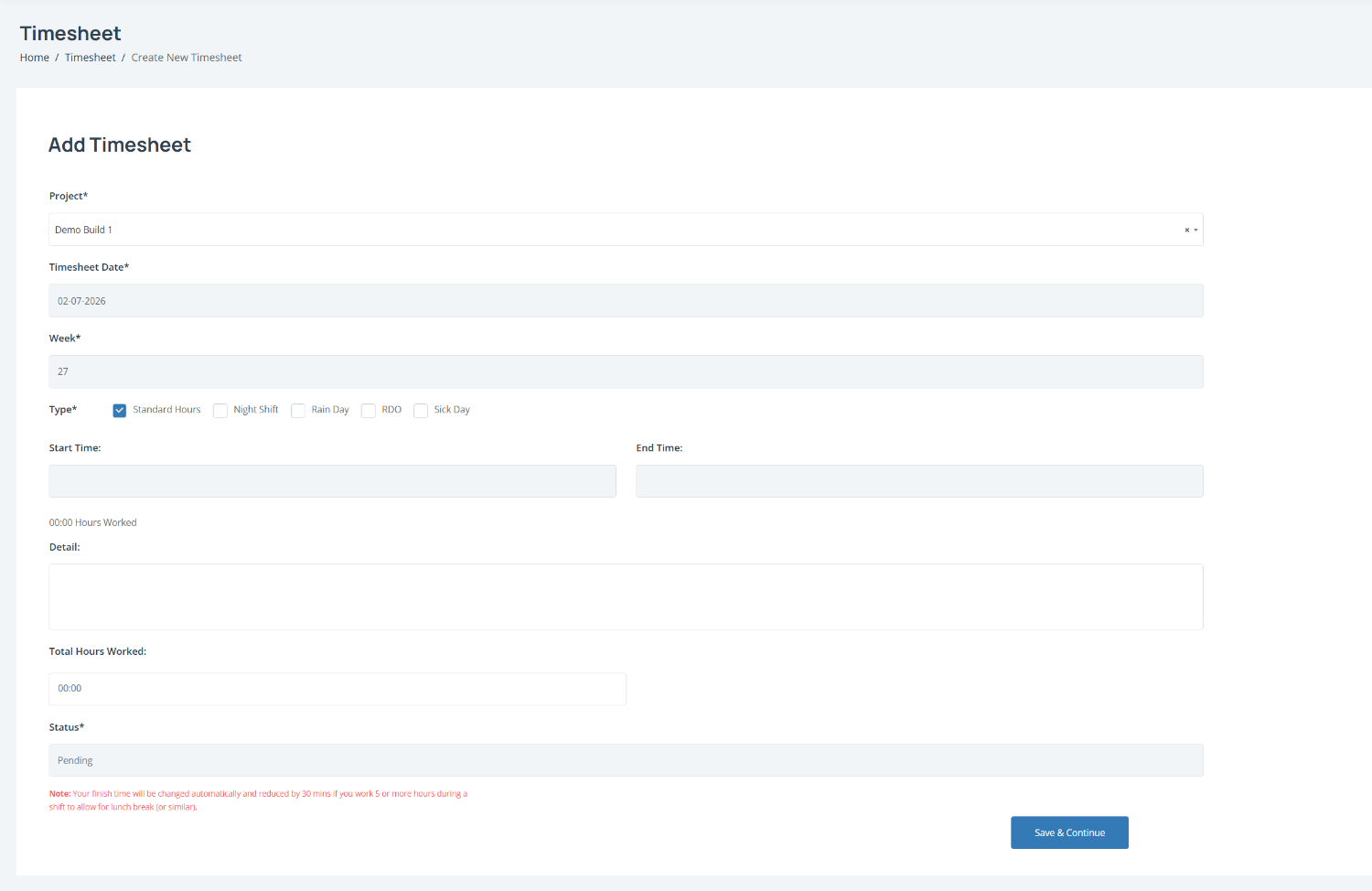
To create a new timesheet:
Select the project from the Project dropdown.
Review the timesheet information, including the Timesheet Date and Week number. These fields are populated automatically based on the selected date.
Select the work type by choosing one of the available options:
Standard Hours
Night Shift
Rain Day
RDO
Sick Day
Select all options that apply to the shift being recorded.
Enter your working hours by completing the Start Time and End Time fields.
The Hours Worked value is calculated automatically.
Add work details in the Detail field. Include a brief description of the work completed during the shift.
Review the total hours worked. The Total Hours Worked field is calculated automatically from the start and finish times.
Confirm the timesheet status. New timesheets are created with a status of Pending until they are reviewed or approved.
Note: If you work 5 hours or more, the finish time is automatically adjusted to include a 30-minute unpaid meal break, where applicable.
Save the timesheet by selecting Save & Continue.
You can also:
Record different types of work, such as night shifts, rain days, RDOs, and sick days.
Add notes to provide supervisors with additional information about the work completed.