

The Add Variation page is used to create a new variation against an existing project. You can record the reason for the variation, describe the work involved, add cost line items, and submit the variation for processing.
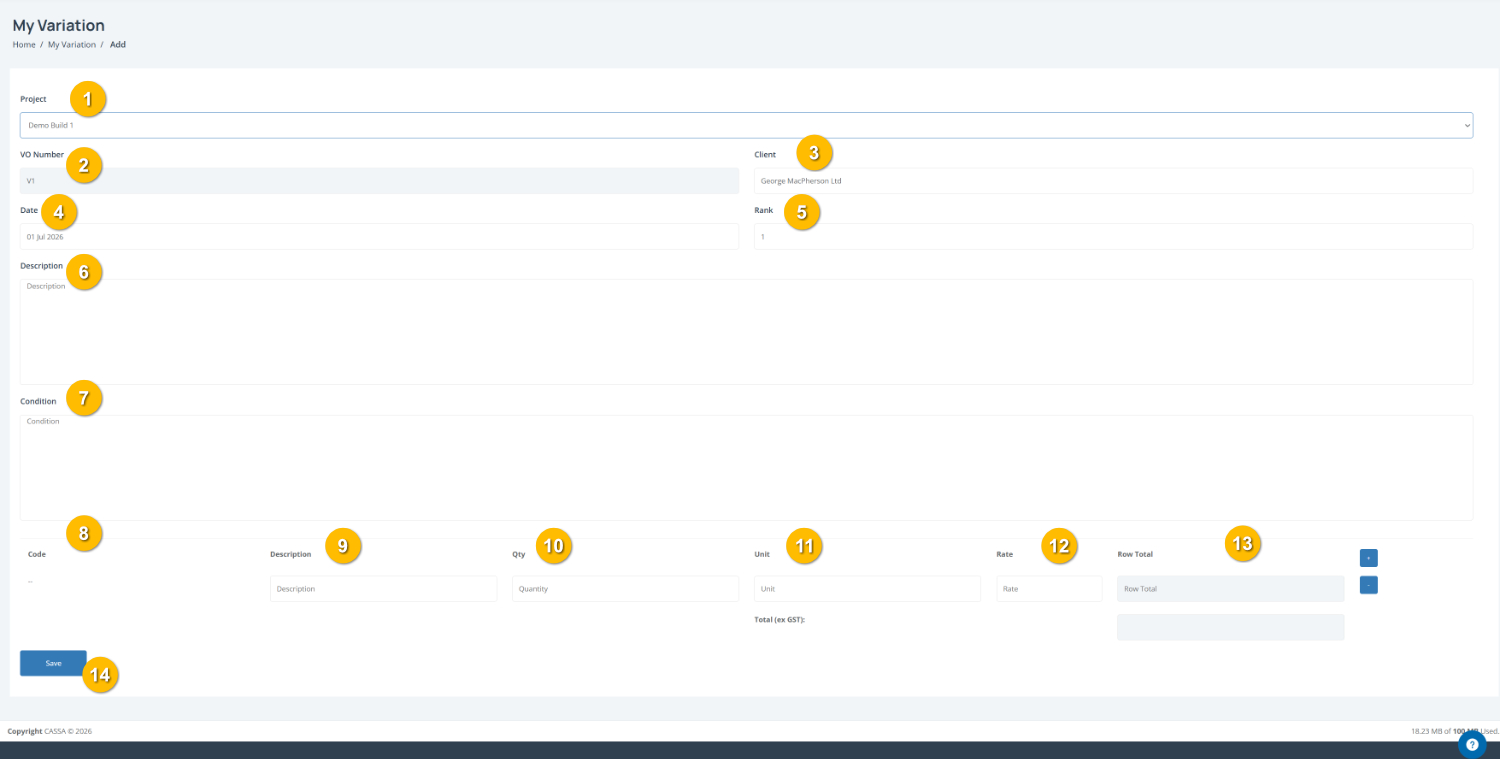
To create a new variation:
Select the project from the Project dropdown (1). The related project information is populated automatically.
Review the variation details including the VO Number (2), Client (3), Date (4), and Rank (5). These fields identify the variation and its associated project.
Describe the variation by entering the details of the proposed work in the Description field (6).
Record the reason or condition for the variation in the Condition field (7). Include any relevant circumstances or supporting information.
Add cost line items by completing the fields in the cost table:
Code (8), where applicable
Description (9)
Quantity (10)
Unit (11)
Rate (12)
The Row Total (13) is calculated from the quantity and rate.
Add additional line items by selecting the + button. Use the – button to remove a line item if required.
Save the variation by selecting Save (14).
Note: The Total (ex GST) is updated automatically based on the line items entered.
You can also:
Include multiple cost items within a single variation.
Review the calculated project variation total before saving.
Variation Added
