
The Manage Variations features allow you to keep variation records up to date after they have been created. Depending on your permissions, you can edit variation details, attach supporting documentation, or delete variations that are no longer required.

Add Files to a Variation
Attach supporting documentation to an existing variation.
To upload variation files:
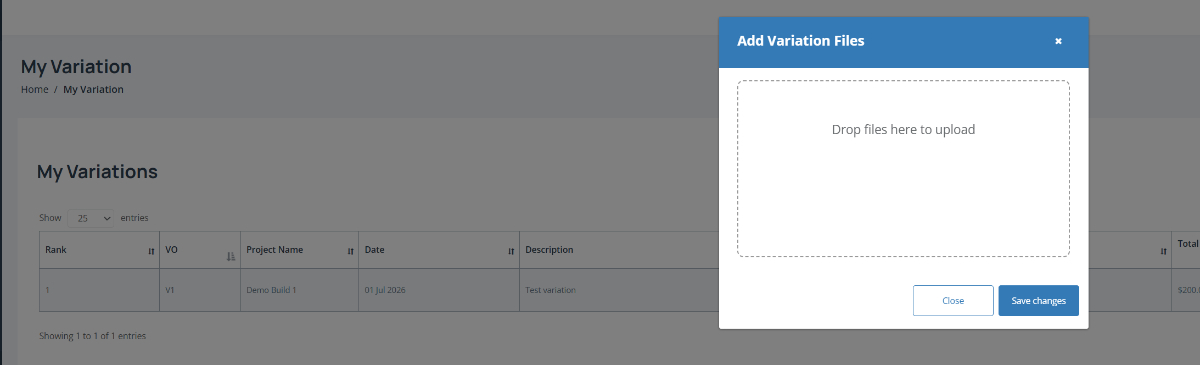
Open the required variation and select Add Files.
Drag and drop files into the upload area, or select files from your device where supported.
Select Save changes to attach the files to the variation.
Note: Supporting documents may include quotations, drawings, specifications, photographs, approvals, or other project records.
Edit a Variation
Update the information recorded against an existing variation.
To edit a variation:
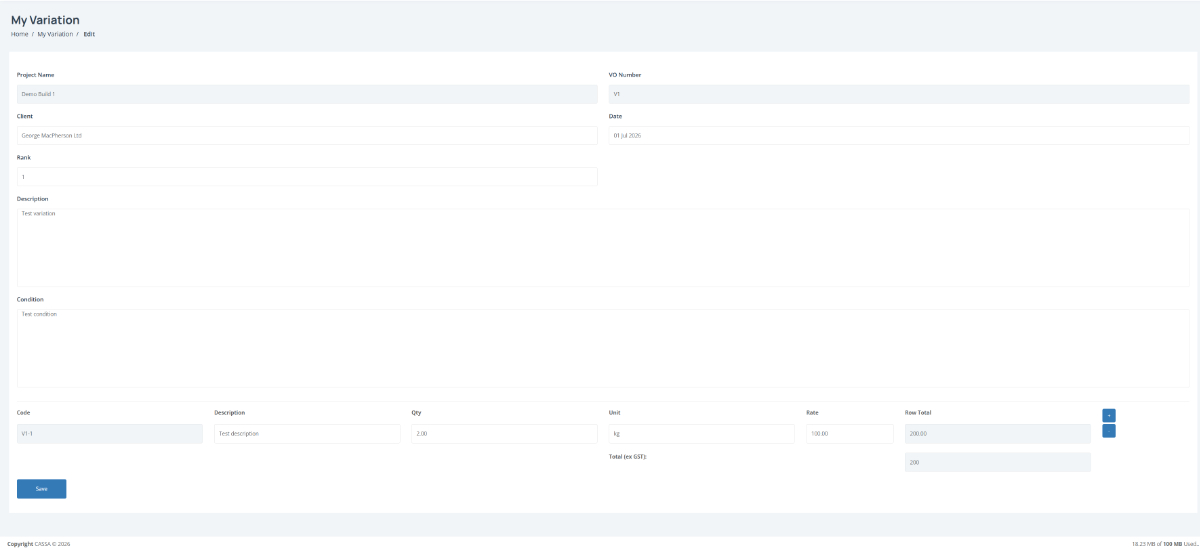
Open the required variation from the My Variations dashboard.
Update the required fields, such as the Description, Condition, or cost line items.
Modify quantities, units, rates, or descriptions as required.
Select Save to apply your changes.
Delete a Variation
Remove a variation that is no longer required.
To delete a variation:
Open the required variation.
Select Delete.
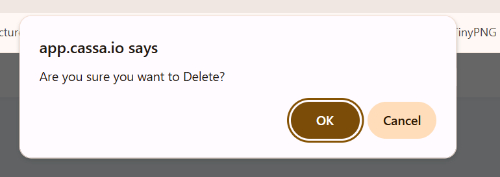
Review the confirmation message.
Select OK to permanently remove the variation, or Cancel to keep it.